Turn off Windows Programs on Startup

Posted on

When loading applications, they sometimes load parts of the program every time you start windows – these apps can slow your machine down when running applications, make startup very slow and at times cause ads to appear.

Its easy to turn off such apps and speed up your computer:

Windows 10

  1. Right click anywhere on the TASK bar at the bottom of the screen
  2. LEFT click on the TASK MANAGER Menu Item
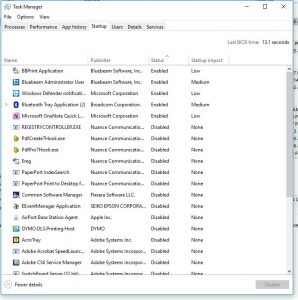
  3. Click the STARTUP Tab – if you do not see the startup tab, on the bottom click MORE DETAILS to show
  4. Select each program you do not want to run and click the DISABLE button – – in our many years experience, you can uncheck ALL except antivirus.
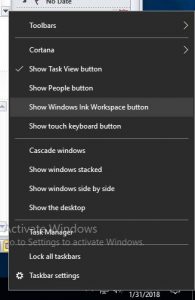
Right Click on Task bar and select TASK MANAGER


Select Each App you want removed and press DISABLE


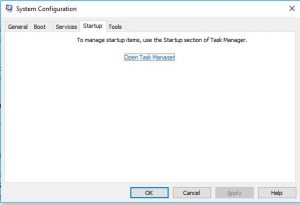
Windows up to 8

  1. Click START
  2. CLICK RUN
  3. Type: MSCONFIG and press ENTER
  4. Click on the tab STARTUP
  5. You will see multiple programs – you can UNCHECK each app you do not want to run – in our many years experience, you can uncheck ALL except antivirus.

Nortel MICS/CICS Phone System Programming Caller ID

Posted on

To program caller ID on a Nortel phone system:

  • Confirm Caller ID (CLID) cards are installed in system
  • Confirm Caller ID is operational from service provider
  • Confirm you have the username and password for the Nortel phone system

Caller ID is programmed on a per-set basis

  1. Feature: **266344
  2. Password: 266344
  3. Screen says TERMINAL & SETS
  4. There will be 3 lights that light on the phone
  5. Press the top right one and dial ext number 221
  6. Press top right button
  7. Press the bottom right button that’s lit 5 times
  8. The screen should say Telco features
  9. Press the top right button 2 times
  10. The screen says Show Line —
  11. Press the button marked LIST under the display
  12. Press the top right button
  13. The screen CALLER ID set N
  14. Press the CHANGE button under the display
  15. Press the top left button
  16. The screen says line 001 : line 001
  17. Press the bottom right button to goto the next line and do steps 8 thru 12 for each line that is programmed to ring at the extension where you want to see caller ID.
  18. When all lines are assigned as caller ID set
  19. Press the top left button
  20. Press the bottom right button
  21. Choose to see NAME or NUMBER first
  22. Press the bottom right button, the screen says called ID N (no)
  23. Press the CHANGE button to say Y (yes)
  24. Press the bottom right button one time
  25. Press the top right button (log space)
  26. Press the ADD button and enter the umber of calls this station can LOG
  27. Program a LOG button on the telephone


Press FEATURE *3 then pick an unused button and dial FEATURE 812

Note: this must be done for all sets that ring and want to see caller ID before they pick up the call.

Each user can dial FEATURE 84 to choose what type of calls they want to LOG at their phone (all calls, unanswered etc…)