This is how SSDs work and what you can do to make yours last longer

Posted on

CNET editor Dong Ngo explains how SSDs work and offers a few useful tips on how to make them last a long, long time.

BY
DONG NGO
APRIL 15, 2017 7:02 AM PDT

Editors’ note: This is a regularly updated article. Read Article at CNET

Traditional hard drives will be here for long time thanks to their large storage space and affordability. However, there is no question that solid-state drives (SSDs) will be the future of storage. Most new computers now come with an SSD as the main storage device. If you have an older (or a new budget-class) machine that still runs on a regular hard drive, it’s definitely time to upgrade. (Here’s some instructions on how to upgrade on a PC and a Mac.) The speed gains you’ll experience from upgrading to an SSD will be by far the biggest performance improvement your computer ever has.

But is it all unicorns and lollipops with SSDs? Not quite. SSDs still fall short in a few places compared to normal hard drives, in particular regarding their write endurance. This means you can only write a finite amount of data to an SSD before you can’t write anymore. In this post, I’ll talk about this shortcoming and how to mitigate it. Most of my suggestions will be focused on Windows PCs.

Writing on a hard drives

The platter is the main component of a traditional hard drive. It’s usually made of glass or aluminum and is the portion that stores your information. It’s coated with a thin layer of metal that can be either magnetized or demagnetized. And the write process is straightforward: the read/write head of the drive hovers on top of the platter and magnetizes and demagnetizes sectors (tiny parts of the platters) into 1 or 0 values to store information in binary patterns. When you overwrite data (that is, when you write new data to an area that already contains data) the process is the same; the sectors just need to be magnetized or demagnetized differently. In other words, writing to a hard drive is always the same, no matter if the drive currently contains data or not.


Writing on an SSD

Writing is totally different and much more complicated with SSDs. There are three important things to remember.

First, aside from when an SSD is brand new and contains no data, writing to an SSD is the process of erasing existing information from the flash memory cells and then programming new information onto them. No new information can be programmed to a cell unless the old data is first erased. For this reason, the process of writing to an SSD is often referred to as program/erase cycles or P/E cycles.

Second, P/E cycles are finite. Each P/E cycle exhausts the memory cell a little more, and after so many cycles it will be totally worn out and become unusable. In a way, this is similar to writing on a piece of paper using a pencil and an eraser. You can only erase the pigment so many times before the piece of paper becomes worn out or even torn and can’t be written on anymore.

And finally, memory cells are organized in pages (each page contains many cells) and blocks (each block contains many pages.) Here’s the tricky part: you can write a page at a time, but you can erase only a block at a time. Now imagine when you want to save a Word document with the changes that can fit in just one page, the SSD needs to first copy the rest of the used pages of the containing block to another place, erase the entire block, then program (or write) all of those pages and the page with the new information. This is called Write Amplification — meaning generally an SSD needs to write a lot more than the actual amount of data you want to write — which further uses up its P/E cycles.

All these result in a few facts. First, SSDs almost always have different write and read speeds. And second, to write optimally, they all need free space to accommodate Write Amplification. Some SSD features Over Provisioning, which is a dedicated amount of free space, non-accessible by users, used only to facilitate its write operation. Without this feature, an SSD’s write speed will get progressively slower as it gets full.

Wear leveling

Now before you let out a “D’oh!” and return your beloved, recently purchased SSD, be aware that the number of potential P/E cycles for an SSD is exponentially larger than that of a sheet of paper. In addition, modern SSDs have technologies that increase write efficiency and reduce wear on its storage cells. Among these technologies, the most important is the “wear-leveling” algorithms that effectively make sure all the drive’s memory chips are used up, cell by cell, before the first cell can be written to again. This also means that SSDs of larger capacities generally have longer life spans than do smaller ones.

So how long is long? To help users estimate how long an SSD will last, most SSD manufacturers present the drive’s endurance by the amount of data that can be written to the drive. For example, the 750GB Crucial MX300 has an endurance of 220TBW, meaning you can write 220 terabytes of data to the drive before it becomes unreliable. To put this in perspective, if you write 50GB of data per day every day to the drive, it will take you some 12 years to wear it out. Most other SSDs have similar or better endurance ratings. Generally the larger the drive, the higher he endurance.

Most of us actually write just a fraction of 50GB of data — which is about two Blu-ray discs’ worth — on our computer’s host drive on a daily basis, and many days we don’t write anything at all. Note that watching movies, reading PDF files, or viewing photos doesn’t count as writing; that’s reading, which has no effect on an SSD’s life expectancy. Only activities like copying music from another drive, downloading files, editing files, or backing up your phone, and so on require you to write to the drive.

That said, if you use an SSD the way you would a hard drive, chances are it will still last longer than a regular hard drive would. But you can do more.

What you can do

The key to maximize the life span of an SSD is to reduce writing to it. Apart from making an effort to reduce unnecessary copying of files, downloading of data, and so on, you should note that there are a few operating system (OS) settings, as well as common tasks designed for regular hard drives, that shouldn’t be used with SSDs.

Upgrade to the latest operating systems: Modern OSes are designed with built-in support for SSDs. That said, make sure your computer run the latest OS. Currently that’s Windows 10 1703 (Creators Update) and MacOS Sierra.

Benchmarking: Most of us want to find out just how fast our new SSD is by copying files from one place to another or using disk-benchmarking software. While this is fun and the information is useful to know, it does waste the drive’s P/E cycles. Avoid it if you can.

Hibernation: (Not to be confused with sleep mode, which won’t affect SSDs’ life span.) Most operating systems have a hibernation feature. During hibernation, the contents of the system memory (the place where currently running programs and information still being processed reside) are written to the computer’s internal storage device (your hard drive or SSD) before the computer is powered off. When the computer is restarted, the system reloads the saved content back into the system memory, and hence restores the computer to the state it was in before it was turned off. Once the loaded, the saved content is deleted from storage.

As you can imagine, the hibernation process can use gigabytes of storage space over time, which translates to a large amount of writing on the internal storage. More specifically, a computer with 4GB of RAM requires some 4GB of storage space to create a hibernation file. Sometimes a computer goes into hibernation by itself, but you can avoid this by completely turning off the hibernation function. Here’s how:

Right click on the Start button (or press Windows + X) to open the WinX menu, then click on Windows Powershell (Admin) and answer “Yes” to the User Account Control security prompt.
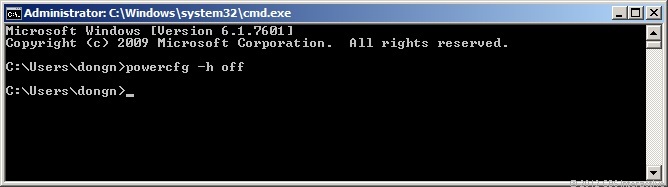
When the Powershell prompt window appears, type in powercfg -h off and then press Enter.
That’s it — your computer will never go into hibernation mode again. To turn this feature back on, repeat this process and type powercfg -h on before pressing Enter.

A computer that’s equipped with an SSD generally boots really quickly, so you can always just save your work and turn it off. Avoiding hibernation also helps the system run more smoothly.
AHCI and TRIM commands:

AHCI, which stands for “advanced host controller interface,” allows the operating system to access the storage faster and use some advanced functions. One of these functions is the TRIM command, which allows a supported operating system to actively inform the SSD which blocks of data are no longer in use and can be wiped. This helps the drive work more efficiently, reduce the effect of Write Amplification and ultimately leads to faster performance and a longer lifespan.

Generally, both AHCI and TRIM are enabled by default. You can check and change the former in the computer’s BIOS setting. It varies depending on your computer, but with most systems you can enter the BIOS by tapping the Delete or F2 key as the computer boots up. Here, look for the storage section and change the value of “Configure SATA as” to “AHCI” (if it’s not already AHCI). It’s better to do this before you install the operating system, otherwise you’ll need to install the storage drivers first before changing the value. Note that if you use two SSDs in a RAID configuration, then the RAID value (rather than AHCI) should be selected. Also if your computer doesn’t have option for RAID or AHCI, but only IDE, then it’s too old — time to shop for a new computer.

You can determine if TRIM is working by running elevated Windows Powershell as described above in the hibernation section, then executing this command:

fsutil behavior query DisableDeleteNotify

If the command returns “DisableDeleteNotify = 0”, then TRIM is running. If not, you can turn it on by executing:

fsutil behavior set disabledeletenotify 0
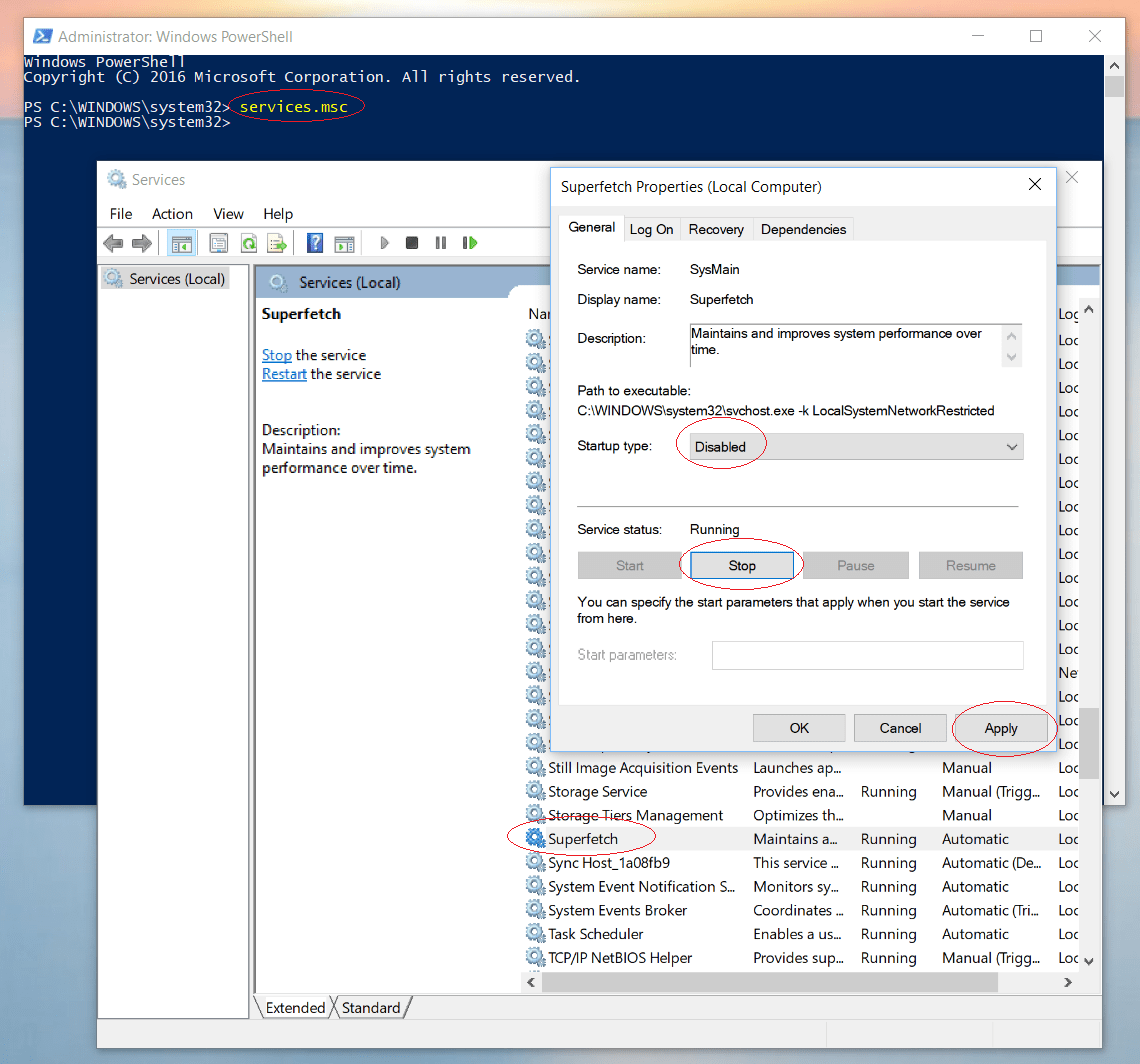
Superfetch: This is a technology, first introduced in Windows Vista, that allows Windows to more efficiently manage system memory and preload frequently accessed data and applications into the memory for faster performance. However, this process requires Superfetch’s cache to be written on the drive and updated regularly, which increases the amount of writing to the drive.

If your computer uses a hard drive, Superfetch is useful. For an SSD, however, it’s not necessary and only wastes the drive’s P/E cycles.

To disable Superfetch, run the Windows Powershell as mentioned above and execute the services.msc command. This will open the Services utility. Next, on the list, look for Superfetch, then double-click it and disable it.

Page File (aka virtual memory): In OSes such as Windows 10, the Page File is like a system memory wannabe. In a nutshell, the Page File is the amount of storage space on an internal storage device that the OS reserves for use when an application requires more physical memory (RAM) than the computer is equipped with.

The Page File’s size tends to change dynamically, resulting in frequent writing to the drive, which, again, is not good for an SSD. So if you use a computer with 8GB of RAM or more, and you generally don’t run lots of concurrent programs, it might be a good idea to turn off Page File completely. However, the best practice is to set it at a fixed size recommended by the system. Or if you’re on a desktop with an SSD as its primary drive and a secondary hard drive, it’s best to move the Page File to the hard drive and disable it on the SSD.
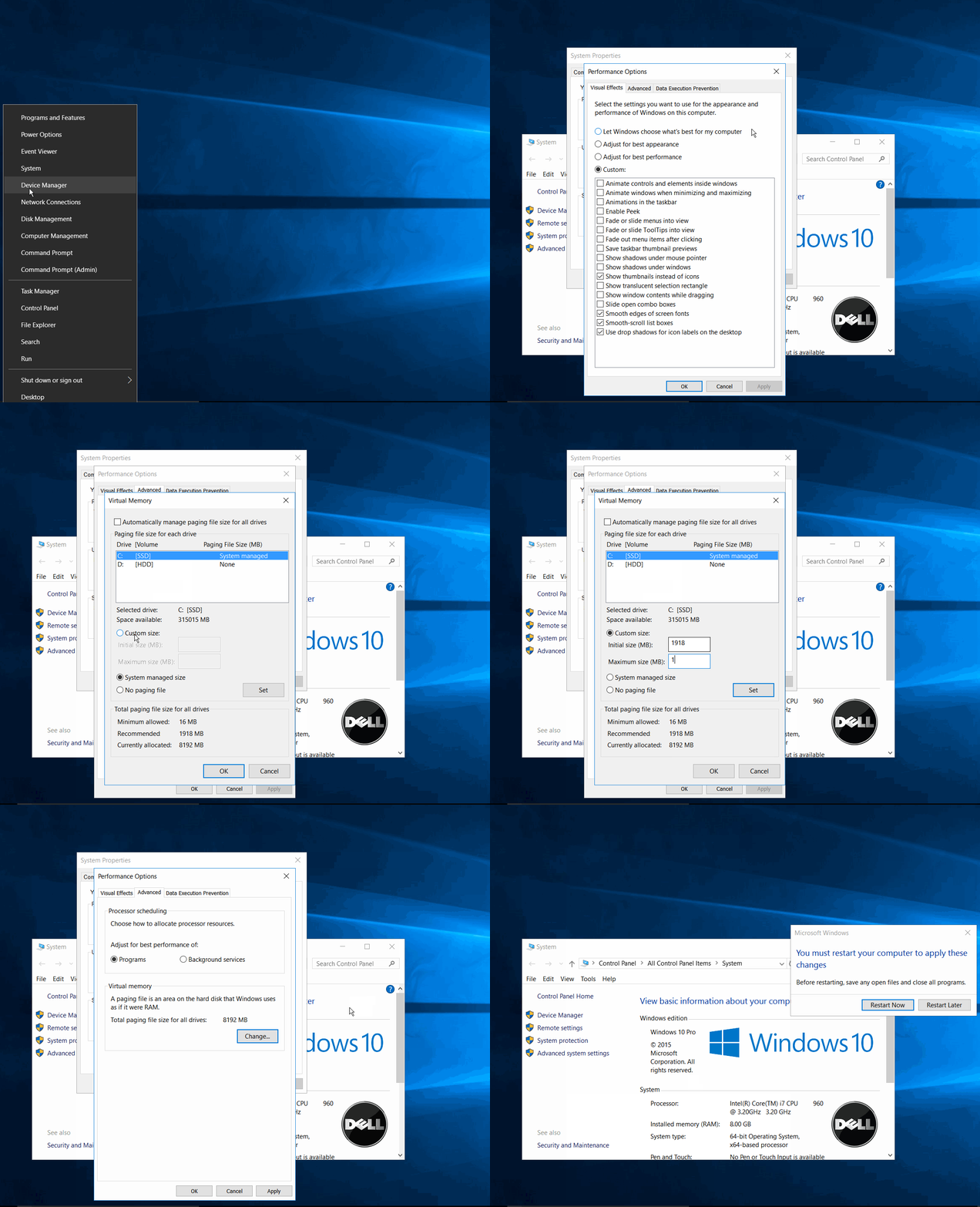
To change the setting of Windows 10’s Page File, follow these steps:

Right-click on Windows’ Start button
Select System (then, if you’re running Windows 10 1703, click on System info)
Click on Advanced System Settings
Choose Advanced tab
Click on the top Settings… button (under the Performance section)
Choose Advanced tab
Click on Change
Uncheck the box that reads “Automatically mange paging file size for all drives”
Check the Custom size radio button
Enter the Initial size and Maximum size with the value of the number following the Recommended: at the bottom of the window
Click on the OK buttons to close the Windows, and choose to Restart the computer.
Move the default location of a frequently written folder to a different drive: This only applies to computers (most likely desktops) with a secondary internal hard drive. In this case it’s a good idea to move the default location of folders that are often written to that drive.

If it’s one of the folders within your profile on a Windows computer — Downloads, Documents, Pictures and so on — you can follow these steps to move it to a new location.

With other folders, you might need to change the default location in the settings/preferences of the software.

Don’t stress

That’s it. After all that, you can rest assured that you’ve done nearly all that can be done to make your SSD work at its most optimal and last as long as possible. Again, note that these are just precautions; if you simply use an SSD the way you do a hard drive, chances are it will still last for a very long time. The latest operating systems all come equipped with SSD-friendly settings that help reduce unnecessary writing. So for most of us, there’s not much to worry about.
Converting Evaluation Versions To Retail Versions of Windows Server 2012

Posted on

This document summarizes key information about evaluation versions of Windows Server® 2012, including where to obtain them, the limits on their use, and how to convert them to full retail versions. It also summarizes the supported upgrade paths from previously licensed retail versions of Windows Server to Windows Server 2012.

Evaluation versions of Windows Server 2012

Fully functional time-limited evaluation versions of Windows Server 2012 are available for the following editions:

  • Windows Server 2012 Standard
  • Windows Server 2012 Datacenter
  • Windows Server® 2012 Essentials

These evaluation versions are 64-bit only and can be installed with the Server Core option or the Server with a GUI option. For more information about these installation options, how to convert between them, and how to use the new Minimal Server Interface and Features on Demand, see http://technet.microsoft.com//library/hh831786.

For all editions, you have 10 days to complete online activation, at which point the evaluation period begins and runs for 180 days. During the evaluation period, a notification on the Desktop displays the days remaining the evaluation period (except in Windows Server 2012 Essentials). You can also run slmgr.vbs /dlv from an elevated command prompt to see the time remaining.

Where to find evaluation versions

You can get evaluation versions by the following methods:

  • Windows Server 2012 Standard; Windows Server 2012 Datacenter: from the TechNet Evaluation Center (http://technet.microsoft.com/evalcenter/hh670538.aspx). These editions are also available as pre-created VHDs for use in virtualized environments.
  • Windows Server 2012 Essentials: from http://go.microsoft.com/fwlink/p/?LinkId=266340

Limits of evaluation versions
All evaluation versions are fully functional during the evaluation period, although booting to Safe mode is not available. The Windows Server 2012 Standard and Windows Server 2012 Datacenter editions come with the activation key pre-installed. After the 180-day evaluation period elapses, the server warns you in various ways depending on the edition:

Windows Server 2012 Standard; Windows Server 2012 Datacenter:

  • The following warning appears on the Desktop: Windows License is expired
  • When you log on to Windows, you are prompted with the following options: Activate now, Ask me later
  • The system shuts down every hour.
  • The only updates that can be installed are security updates.
  • Event ID 100 from source WLMS “The license period for this installation of Windows has expired. The operating system will shut down every hour.” appears in the Application log.

Windows Server 2012 Essentials: you receive warnings on the Desktop and on the dashboard, but the server does not shut down.

Converting evaluation versions of Windows Server 2012 to full retail versions

Most evaluation versions can be converted to full retail versions, but the method varies slightly depending on the edition. Before you attempt to convert the version, verify that your server is actually running an evaluation version. To do this, do either of the following:

  1. From an elevated command prompt, run slmgr.vbs /dlv; evaluation versions will include “EVAL” in the output.
  2. From the Start screen, open Control Panel. Open System and Security, and then System. View Windows activation status in the Windows activation area of the System page. Click View details in Windows activation for more information about your Windows activation status.

If you have already activated Windows, the Desktop shows the time remaining in the evaluation period.

If the server is running a retail version instead of an evaluation version, see the “Upgrading previous licensed versions” section of this document for instructions to upgrade to Windows Server 2012.

For Windows Server 2012 Essentials: You can convert to the full retail version by entering a retail, volume license, or OEM key in the command slmgr.vbs.

If the server is running an evaluation version of Windows Server 2012 Standard or Windows Server 2012 Datacenter, you can convert it to a retail version as follows:

  1. If the server is a domain controller, you cannot convert it to a retail version. In this case, install an additional domain controller on a server that runs a retail version and remove AD DS from the domain controller that runs on the evaluation version. For more information, see http://technet.microsoft.com/library/hh994618.aspx.
  2. Read the license terms.
  3. From an elevated command prompt, determine the current edition name with the command DISM /online /Get-CurrentEdition. Make note of the edition ID, an abbreviated form of the edition name. Then run DISM /online /Set-Edition: /ProductKey:XXXXX-XXXXX-XXXXX-XXXXX-XXXXX /AcceptEula, providing the edition ID and a retail product key. The server will restart twice.

For the evaluation version of Windows Server 2012 Standard, you can also convert to the retail version of Windows Server 2012 Datacenter in one step using this same command and the appropriate product key.

Upgrading previous retail versions of Windows Server to Windows Server 2012

The table below briefly summarizes which already licensed (that is, not evaluation) Windows operating systems can be upgraded to which editions of Windows Server 2012.

Note the following general guidelines for supported paths:

  • In-place upgrades from 32-bit to 64-bit architectures are not supported. All editions of Windows Server 2012 are 64-bit only.
  • In-place upgrades from one language to another are not supported.
  • In-place upgrades from one build type (fre to chk, for example) are not supported.
  • If the server is a domain controller, see http://technet.microsoft.com/library/hh994618.aspx for important information.
  • Upgrades from pre-release versions of Windows Server 2012 (such as the Release Candidate) are not supported. Perform a clean installation to Windows Server 2012.
  • Upgrades that switch from a Server Core installation to the Server with a GUI mode of Windows Server 2012 in one step (and vice versa) are not supported. However, after upgrade is complete, Windows Server 2012 allows you to switch freely between Server Core and Server with a GUI modes. For more information about these installation options, how to convert between them, and how to use the new Minimal Server Interface and Features on Demand, see http://technet.microsoft.com/library/hh831786.
  • If you do not see your current version in the left column, upgrading to this release of Windows Server 2012 is not supported.

If you see more than one edition in the right column, upgrade to either edition from the same starting version is supported.

If you are running: You can upgrade to these editions:
Windows Server 2008 Standard with SP2 or Windows Server 2008 Enterprise with SP2 Windows Server 2012 Standard, Windows Server 2012 Datacenter
Windows Server 2008 Datacenter with SP2 Windows Server 2012 Datacenter
Windows Web Server 2008 Windows Server 2012 Standard
Windows Server 2008 R2 Standard with SP1 or Windows Server 2008 R2 Enterprise with SP1 Windows Server 2012 Standard, Windows Server 2012 Datacenter
Windows Server 2008 R2 Datacenter with SP1 Windows Server 2012 Datacenter
Windows Web Server 2008 R2 Windows Server 2012 Standard

Per-server-role considerations for upgrading

Even in supported upgrade paths from previous retail versions to Windows Server 2012, certain server roles that are already installed might require additional preparation or actions for the role to continue functioning after the upgrade. The following table summarizes these considerations.

Server role Upgrade information
Active Directory
  • Active Directory Domain Services (AD DS): Active Directory domains can be upgraded by upgrading the operating system of existing domain controllers or by replacing existing domain controllers with domain controllers that run Windows Server 2012. For more information, see Deploy Active Directory Domain Services (AD DS) in Your Enterprise (http://go.microsoft.com/fwlink/?LinkId=262195).
  • Active Directory Lightweight Directory Services (AD LDS): For more information, see Upgrading from ADAM to AD LDS (http://go.microsoft.com/fwlink/?LinkId=186351).
Active Directory Federation Services (AD FS) For more information about upgrading AD FS from Windows Server 2008 R2 to Windows Server 2012, see http://technet.microsoft.com/library/jj647765.aspx
Active Directory Rights Management Services (AD RMS) You can perform an in-place upgrade from either Windows Server 2008 or Windows Server 2008 R2 to Windows Server 2012. After completing upgrade of your operating system for any servers running the AD RMS server role, you will need to run the AD RMS Upgrade wizard to upgrade your AD RMS cluster and ensure consistency. Otherwise, your AD RMS cluster might not be in a consistent state. The only other consideration when upgrading that you should be aware of when upgrading from these versions of the Windows Server operating system is that if the Windows Internal Database (WID) was previously selected for use to support your AD RMS database needs, that configuration will block your upgrade to Windows Server 2012 and require you to take additional steps. To unblock your upgrade to Windows Server 2012 you must first uninstall the AD RMS server role and migrate the existing WID instance to a SQL Server instance. For more information, see http://go.microsoft.com/fwlink/?LinkId=229299.
Fax Server See http://technet.microsoft.com/library/jj134193.aspx.
File and Storage Services After you upgrade a Windows Server 2008 R2-based server that has DFS Management installed, you must reinstall the DFS Management Tools on the server. To install the DFS Management Tools, run the following Windows PowerShell cmdlet as an administrator: Install-WindowsFeature RSAT-DFS-Mgmt-Con

You can also use the Add Roles and Features Wizard in Server Manager. On the Features page of the wizard, expand Remote Server Administration Tools, expand Role Administration Tools, expand File Services Tools, and then select the DFS Management Tools check box.

Hyper-V Shut down and save all virtual machines prior to starting upgrade. For additional information, see http://technet.microsoft.com /library/hh831531
Print and Document Services See http://technet.microsoft.com/library/jj134150.
Remote Access Routing and Remote Access Service (RRAS) was a role service in Windows Server operating systems prior to Windows Server 2012 that enabled you to use a computer as an IPv4 or IPv6 router, as an IPv4 network address translation (NAT) router, or as a remote access server that hosted dial-up or virtual private network (VPN) connections from remote clients. Now, that feature has been combined with DirectAccess to make up the Remote Access server role in Windows Server 2012. For information about migration from Windows Server 2008 R2 and other versions prior to Windows Server 2012, see http://technet.microsoft.com/library/hh831423.aspx
Remote Desktop Services Windows Server® 2008 R2 Remote Desktop Services role services cannot be migrated to Windows Server 2012, however an existing Windows Server 2008 R2 RD Session Host server deployment can be integrated into a Windows Server 2012 RDS deployment. The Windows Server 2012 RD Web Access can be configured to point to an existing Windows Server 2008 R2 RD Session Host server farm. Desktops and RemoteApp programs published on the Windows Server® 2008 R2 RD Session Host server farm can be accessed from a Windows Server 2012 RD Web Access server.The Following steps need to be completed in order to add an existing Windows Server® 2008 R2 RD Session Host server farm to a Windows Server 2012 Remote Desktop Services deployment:

  • Populate the TS Web Access Computers Security Group.
  • Configure Windows Server 2008 R2 Session Host servers with the right certificate to sign RDP files.
  • Pointing a Windows Server 2012 RD Web Access server to a Windows Server® 2008 R2 RD Session Host server farm.
Volume Activation Services With Active Directory-based Activation, you do not need an additional host server; your existing domain controllers can support activation clients, with the following limitations:

  • Active Directory-based Activation cannot be configured on read-only domain controllers.
  • Active Directory-based Activation cannot be used with non-Microsoft directory services.
  • AD DS must be at the Windows Server 2012 schema level to store activation objects. Domain controllers running earlier versions of Windows Server can activate clients after their schemas have been updated using the Windows Server 2012 version of Adprep.exe. For more information, see What’s New in Active Directory Domain Services Installation and Removal.
Web Server (IIS) No functionality has been removed or changed. Web applications that work in IIS 7.0 run normally in IIS 8.0.

Converting existing Windows Server 2012 versions

At any time after installing Windows Server 2012, you can run Setup to repair the installation (sometimes called “repair in place”) or, in certain cases, to convert to a different edition.

You can run Setup to perform a “repair in place” on any edition of Windows Server 2012; the result will be the same edition you started with.
For Windows Server 2012 Standard, you can convert the system to Windows Server 2012 Datacenter as follows: From an elevated command prompt, determine the current edition name with the command DISM /online /Get-CurrentEdition. Make note of the edition ID, an abbreviated form of the edition name. Then run DISM /online /Set-Edition: /ProductKey:XXXXX-XXXXX-XXXXX-XXXXX-XXXXX /AcceptEula, providing the edition ID and a retail product key. The server will restart twice.

For Windows Server 2012 Essentials, you can run Setup and convert it to Windows Server 2012 Standard by providing the appropriate retail license key.

How to Cancel or Delete a Stuck Print Job in Windows

Posted on

How to Cancel or Delete a Stuck Print Job in Windows

cpj_top

Sometimes, documents you’re printing get stuck in the printer’s queue, preventing further documents from being printed. Here’s how to fix it when that happens.

Whether you’re using a local or shared network printer, sometimes printing doesn’t go quite right. If you’ve tried troubleshooting obvious printer problems—paper jams, no paper, low ink or toner, or simply restarting the printer—it’s time to turn your attention toward the print queue. Often, simply clearing and restarting the print spooler—the software that prepares and manages printing documents—can fix the problem. If that fails, you may need to cancel one or more documents in your print queue and see if that gets things going again.

This should work in Windows Vista, 7, 8, and 10.

Clear and Restart the Print Spooler

Clearing and restarting the print spooler should be your first step when trying to fix stuck print jobs because it won’t actually cancel any of your currently printing documents. Instead, it restarts things and proceeds as if all those documents had just been sent to the printer for the first time.

To do this, you’ll stop the Print Spooler service, delete the temporary cache Windows uses to spool print jobs, and then start the service again. We’re going to show you two ways to do this. First, we’ll look at how to do it manually, and then we’ll look at how to create a batch script so that you can do it any time you want with just a click.

 Clear and Restart the Print Spooler Manually

To clear and restart the print spooler manually, you’ll first need to stop the Print Spooler service. Click Start, type “services,” and then click the Services app.

In the right-hand pane of the Services window, find and double-click the “Print Spooler” service to open its properties window.

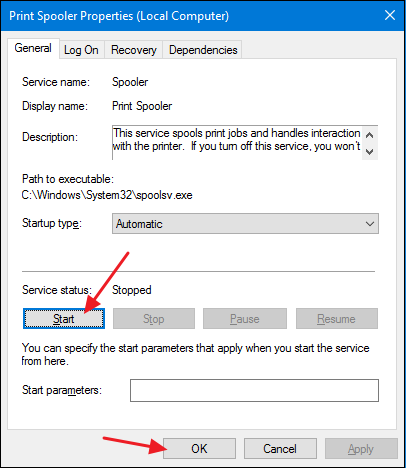
In the properties window, on the “General” tab, click the “Stop” button. You’ll be restarting the service a bit later, so go ahead and leave this properties window open for now.

Fire up File Explorer and browse to the following location—or just copy and paste this text into your File Explorer address bar and hit Enter:

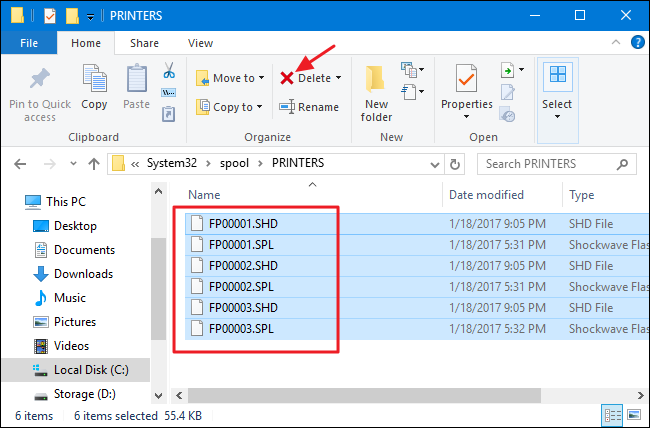
%windir%\System32\spool\PRINTERS

You’ll likely be asked to provide permission to access this folder. Go ahead and accept.

Delete the contents of the entire folder by pressing Ctrl+A and then the Delete key.

cpj_12

Now, return to that open properties window in the Services app and click “Start” to restart the Print Spooler service. Click “OK” to close the properties window and you can also go ahead and exit the Services app.

cpj_13

As soon as you restart the Print Spooler service, all the documents in your queue are immediately respooled and sent to the printer. If all goes well, they should start printing again right away.

Clear and Restart the Print Spooler with a Batch File

 If clearing your print queue by restarting the Print Spooler service is something you think you’ll be doing more than once—or you’d just rather not go through the trouble of using the Services app—you can also create a simple batch file to do the job.

Fire up Notepad or your preferred text editor. Copy and paste the following text as separate lines into the blank document:

net stop spooler
del /Q /F /S "%windir%\System32\spool\PRINTERS\*.*"
net start spooler

Next, you’ll save your document as a .bat file. Open the “File” menu and click the “Save As” command. In the “Save As” window, browse to the location you want to save the file. On the “Save as type” drop-down menu, choose the “All files (*.*)” entry. Name your file whatever you like, but include “.bat” at the end. Click “Save” when you’re done.

You can now double-click that batch file to clear the print spooler whenever you want. Better yet, create a shortcut to the batch file and then place that shortcut where it makes the most sense to you—desktop, Start menu, or taskbar—and you’ll have one-click access to clear and restart the print spooler whenever you want.

Restart or Cancel Some or All of Your Printing Documents

If clearing and restarting the print spooler didn’t do the trick, the next step you’ll want to take is to see if you can identify—and cancel—whatever document is stuck. Sometimes, clearing a single stuck document will get your printer going again and any other print jobs in the queue can finish printing normally. Other times, you might have to cancel all the currently printing documents and then try printing them again.

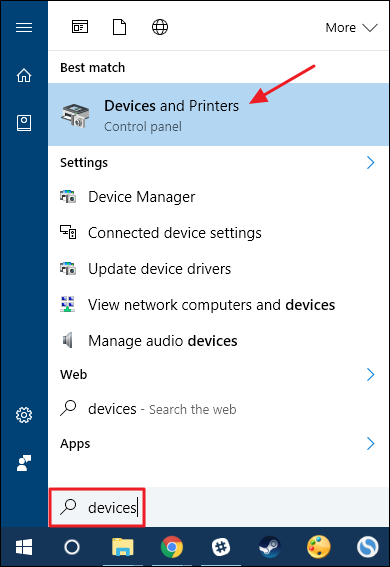
Click Start, type “devices,” and then click the “Devices and Printers” Control Panel app.

cpj_1

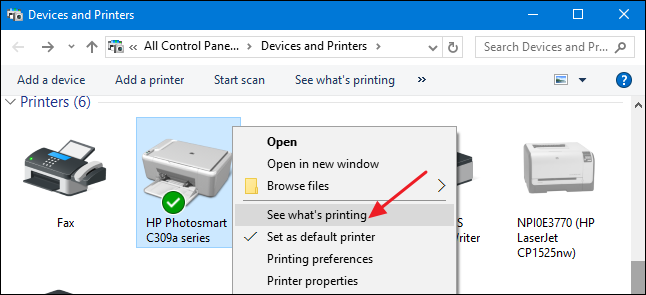
In the Devices and Printers window, right-click the printer you’re having trouble with and then click the “See what’s printing” command to open the print queue.

cpj_2

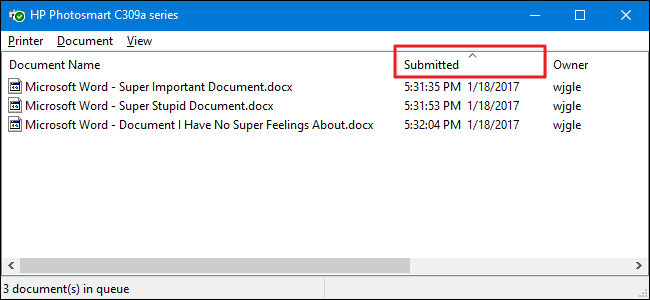
The print queue window shows the print jobs currently awaiting printing. If a single document is causing the problem and you have more than one document in the queue, it’s usually the earliest document that’s stuck. Click the header for the “Submitted” column so that the documents are arranged in the order they were submitted, with the earliest at the top. Note that in our example, we arranged the columns so they would fit in our screenshot better, so your “Submitted” column may be further to the right.

cpj_3

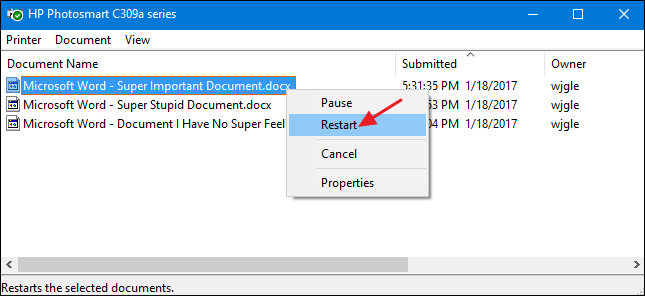
Right-click the earliest print job and then select “Restart” from the context menu.

cpj_4

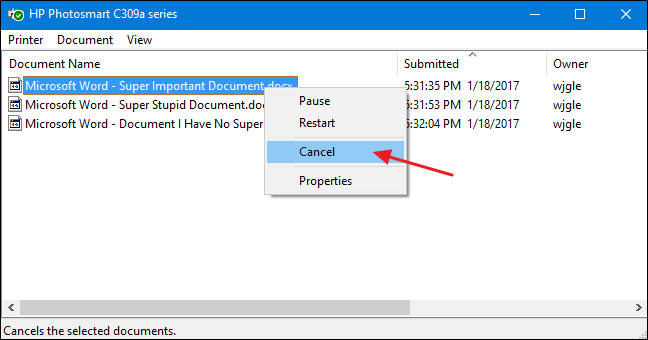
If your printer cranks up and starts printing after restarting the document, you’re good to go. Otherwise, you’ll need to try canceling the document. Right-click the document again and select the “Cancel” command.

cpj_5

Click “Yes” to confirm that you want to cancel the document.

cpj_6

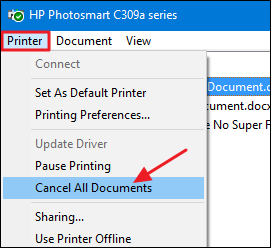
If the cancellation was successful, the document should disappear from the print queue and the printer will start printing the next document in line. If the document didn’t get canceled at all—or if the document did get canceled but printing is still not happening—you’ll need to try canceling all the documents in the queue. Click the “Printer” menu and then choose the “Cancel all documents” command.

cpj_7

All the documents in the queue should disappear and you can try printing a new document to see if it works.


If restarting the print spooler and clearing documents from the print queue didn’t fix your printing problem—and your printer was working successfully previously—then you’ll likely need to turn your attention toward things like updating or reinstalling your printer drivers or moving on to whatever diagnostics are provided by the manufacturer of your printer. But hopefully, these steps have helped fix your stuck print job before going that far.

Windows 10 Paging file error on boot up

Posted on

Error:

Windows created a temporary paging file on your computer because of a problem that
occured with your paging file configuration when you started your computer. The total paging
file size for all disk drives may be somewhat larger than the size you specified

If you get errors that Windows cannot create a paging file, you can do the following:

  1. Try repairing the drive by checking fro errors and defraging
  2. Delete the [pagefile.sys] and reboot
  3. Modify the registry to verify the paging file has a location

Deleting Paging File

  1. Log in under a local Administrator account. (Do this after each restart in these instructions as well.)
  2. If it’s not already open, open the virtual memory settings by rich-clicking on Computer, → PropertiesAdvanced System Settings → click the Advanced tab → Under Performance, click Settings, go to Advanced tab, finally under Virtual Memory section click the Change button.
  3. Uncheck the Autmatically manage paging file size for all drives checkbox.
  4. Set a “Custom size” for the paging file on the C drive: 0MB initial, 0MB maximum.
  5. Click OK, close all dialog boxes, and restart your computer.
  6. After logging in again, delete the file C:\pagefile.sys
    1. To do this, you may need to change your folder settings so you can see it first. Open a window of your C: drive and click Organize at the top, then Folder and Search Options
    2. Click the View tab, and make sure Show hidden files, folders and drives is turned on, and that Hide protected system files is not checked.
    3. Click OK and go back to your C: drive, find pagefile.sys and delete it.
  7. Now go back to the virtual memory settings (see step 2 above) and set the paging file for the C: drive to System managed size, and then make sure the Automatically manage paging file size for all drives checkbox is checked.
  8. Click OK, close all dialog boxes, and restart your computer.

Registry Change

HKLM\SYSTEM\ControlSet001\Control\Session Manager\Memory Management/PagingFiles

Resolving HDMI Sound Issues

Posted on

Resolving HDMI Sound Issues

  • Right-click the Volume icon by the time in the lower-right corner.
  • Click Playback Devices.
    The Sound window opens.
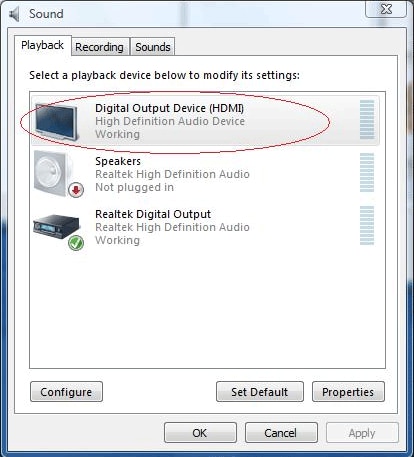
  • On the Playback tab, click the following audio output device that is listed:
    • Digital Output Device (HDMI)
      Figure : Digital Output Device (HDMI) selection

      Image of Digital Output Device (HDMI) selection

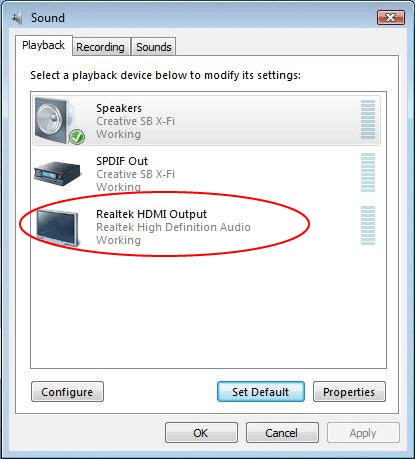
    • Realtek HDMI Output
      Figure : Realtek HDMI Output selection

      Realtek HDMI Output selection

    • NVIDIA HDMI Output
      Figure : NVIDIA HDMI Output selection

      NVIDIA HDMI Output selection

    • ATI HDMI Output
      Figure : ATI HDMI Output selection

      ATI HDMI Output selection

  • Click Set Default.
  • Click Apply.
    • If you used Digital Output Device (HDMI), click OK to close the window. This completes the steps to activate HDMI sound.
    • If you used Realtek HDMI Output, continue with Step 6.
  • Double-click Realtek HDMI Output.
    The Realtek Digital Output Properties window opens.
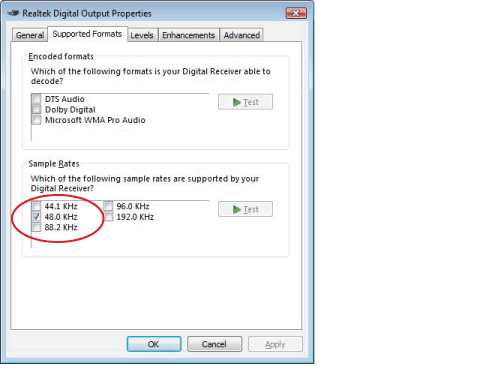
  • Click the Supported Formats tab.
  • Place a check in the 48.0 KHz check box, and make sure that there are no checks in the Dolby Digital check box and all other check boxes.
    Figure : Supported Formats settings in the Realtek Digital Output Properties window

    Supported Formats settings in the Realtek Digital Output Properties window

      note:
    For most TVs to play back audio, the sample rate must be 48.0 KHz.