FBI: “Please Reboot Your Router”

Posted on

Plenty of news outlets have reported on the existence of a rather nasty-sounding malware – thought to originate in Russia – that may have already infected hundreds of thousands of Internet routers up and down the country. The FBI, however, may have a surprisingly easy fix for the problem: switch your router off, then turn it on again.

The official FBI public service announcement explains what this piece of malicious software is capable of. “VPNFilter is able to render small office and home office routers inoperable,” it notes, adding that “the malware can potentially also collect information passing through the router.”

It’s not easy to discover, either. Apparently, identifying and assessing the network activity of the malware in question “is complicated by its use of encryption and misattributable networks.”

Clearly, it’s a sophisticated piece of tech; the FBI attributes the malware to “foreign cyber actors” and The New York Times reports that it’s of Russian origin, with the Justice Department linking it to the Sofacy Group. Also known as Fancy Bear, this is the same Russian military intelligence agency outlet that hacked the DNC servers prior to the 2016 presidential election.

The FBI explains that “the size and scope of the infrastructure impacted by VPNFilter malware is significant. The malware targets routers produced by several manufacturers and network-attached storage devices by at least one manufacturer.”

This sounds both grim and complicated, which makes it all the more impressive that the temporary solution to the problem may be deceptively simple. “The FBI recommends any owner of small office and home office routers reboot the devices to temporarily disrupt the malware and aid the potential identification of infected devices,” it says, almost nonchalantly.

ArsTechnica reports that later “stages” of the malware, which steal data and so on, are temporarily disabled during a reboot. Upon rebooting, stage one calls out to the now-seized website for instructions, which allows the FBI to identify the infected device.

They also advise people to perhaps disable any remote management settings on their device, make sure their passwords are strong, and to activate any encryption software if available. If you can, make sure the devices are operating the most up-to-date version of the firmware.

According to the Guardian, the warning followed on from a recent court order that permitted the FBI to take control of a website, one the hackers planned to use to command the malware within the routers. Although this ability has since been disabled, the routers still remain infected if no further action has been taken on the part of the owners.

Far from just the US, by the way, infections have apparently been detected in at least 54 countries, with Ukraine thought to be the prime target for the hackers.
New Quickbooks on ShowMyOffice!

Posted on
quickbooks

You now have the latest version of Quickbooks!

We updated all of our hosted clients to Quickbooks Enterprise 18. Some new features and improvements include:

  • Control, customize, and automate your pricing right in QuickBooks with Advanced Pricing.6 Just set up price rules and all the calculations are done for you.
  • Advanced Reporting puts the information you need right at your fingertips. Build powerful, customizable reports that are auto-filled with company data. Easy templates for contractor, manufacturing & wholesale, non-profit, and retail let you create reports specifically for your industry.
  • Enterprise has 6x the capacity of other QuickBooks products, allowing for up to 1 million items, users, and vendors
  • Enterprise has editions dedicated to contractor, manufacturing and wholesale, nonprofit, and retail so that you can get specialized features like reports and chart of accounts specifically for your industry.
  • Grow your business without sacrificing control over user access. Set individual user permissions for every role. Predefined, user role templates are included for fast setup.
    Scale up to 30 users
  • Enterprise grows with you, letting you scale from 1 to 30 users who can all work at the same time. But you maintain access and control, assigning user permissions as you see fit for your business.9
    One-click insights dashboard
  • Know how your business is doing in one click. The insights dashboard tells the story of your business visually with graphs that zero in on key performance indicators like profit and loss, business growth, net profit margin, income and expenses, and top customers.
  • Having to remember the timing of various payroll liabilities — like federal and state payroll taxes and workers’ comp — can be a real stressor. But now you can rest easy knowing you’ll get a reminder right on your home screen seven days before liabilities are due
  • Large accounts are easier to manage with an added search bar right in Chart of Accounts. You can quickly find an account or subaccount and search by account name or account number.
    Cash/accrual toggle
  • Now all it takes is one click in the report window to switch from cash to accrual basis and back again. You’ll be able to easily analyze your business from different angles. It’s great for businesses that report in one basis and file taxes in another.
    Past due stamp
  • QuickBooks can automatically add a “Past Due” notice on overdue invoices so you can get customers to pay you faster. You can easily remove it from specific invoices by just toggling it off with one click.

Should you need any help, as always feel free to contact us.

Safeguarding Yourself From E-Mail Phishing

Posted on

What is Email Phishing?

Phishing is when a third party, usually a hacker or malicious website, uses the branding of a well known company to lure a user into exposing private information.

There are two types of email phishing schemes:

  • Phishing emails that come to you
  • Phishing emails that come from you

Phishing emails impersonate legitimate businesses to implant malware in an attachment or download or obtain login credentials. Phishing is the primary method of obtaining user information or passwords for attacks. You need to know how to protect yourself, your employees, and your business from phishing.

Identifying Phishing Emails
Phishing groups and hackers are constantly changing their patterns to improve both their targeting and the effectiveness of their emails in order to exploit users, but there are a few characteristics in common for every phishing email.

Phishing emails impersonate a strong brand

Big brands such as Paypal, UPS, Fedex, financial institutions, credit cards, banking and insurance industries are often impersonated to trick users into thinking an email message is authentic. Always ask yourself these three questions: Do you really have an account with that company? Is this the email address i provided for that account? Have you done anything with the account lately?

“From” domain and Return Path Domain will not match

It is relatively easy to spoof a “From” address. Email Standards allow ANY 3rd party to send email messages on the internet on behalf of another domain, otherwise hosting providers like Google and Outlook.com or bulk email providers could not send email for the business or personal domains they host. If for example, you recieve a message that looks like it came from PayPal, make sure the from address ends in PAYPAL.COM. There also may be text after the .com, for instance, PayPal.com.something.somethingelse. In this instance, you have a phishing email! –

There is an (often unexpected) attachment

If you are required to download anything that you did not ask the company for, then it is probably a phishing email and will most likely contain malware or viruses. PDFs or Word DOCs can contain malware payloads. They are trying to trick you into thinking that their fake attachment is real so that they can get personal, private or financial data from you. Don’t download attachments you did not ask for.

There is a sense of urgency

These kinds of emails will usually ask you to “take action soon” or it will cost you money. This sense of urgency makes you react before you think. Take a breath before acting on any email that looks really important.

Links on the page go to a different domain

Often a phishing email will include a link to a 3rd or 4th domain or just to an IP address. The goal here is to get you to click unsuspectingly on any link so they can further the con and grab your information when you attempt to login to their fake website. Sometimes the domains even look like subdomains or related domains. Always check links before clicking on them.

It is always best practice to open a clean window and navigate to the company’s website and login to your account from there to check on the issue. for Example, if you received an urgent email from Your Bank, either open a new browser window and go directly to your bank’s website by typing in the address yourself, or give your bank a call.

Quality Varies

Some phishing emails, look good on the surface. For example, the logos look correct, the fonts and color scheme are appropriate and some of the language is even straight from legitimate emails. However, when you read deeper you can see spelling mistakes, grammatical errors or other areas where it is clear the writer was not a native English speaker.

Our Spam Filter Has You Covered


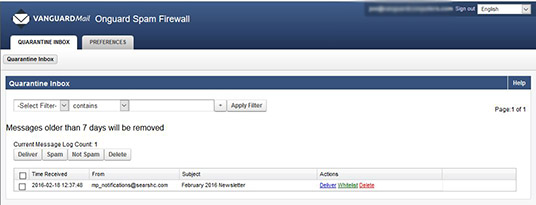
While no spam filtering solution exists that can eliminate this problem, our spam filtering has intelligent, adaptive, and learning based heuristics capabilities, allowing it to detect and block most of these emails before they ever hit your inbox. While having spam protection helps, its always up to the end users to follow these guidelines and become aware of these warning signs.

[su_button url=”http://www.bulldogtechinc.com/services/exchange-email-archiving/” target=”blank” background=”#bf1e2e” color=”#ffffff” size=”10″ wide=”no” center=”yes” icon=”icon: arrow-down” icon_color=”#ffffff”]Learn More About Spam Filtering & Email Hosting[/su_button]

Coming Soon To ShowMyOffice (Parallels or 2X) – Office 2016!

Posted on
microsoft office 2016

Check Back For Updates, The Launch Date Will Be Announced Shortly!

The 2016 version of Microsoft’s productivity suite includes features for easier collaboration and sharing. Excel gets a boost in power, Outlook streamlines everyday tasks, and most applications help you find the command you need.

The latest version of Microsoft Office includes many new productivity, collaboration, and data analysis features. Here are just a few of the top new features.

Work Faster with “Tell Me”

The Tell Me box in most applications helps you perform important tasks even if you don’t know how to do something. Rather than using Help or just poking around, you can type what you want to do in this box. Office shows you a list of commands you can use to complete your task. If you have selected something in your document, you will see commands specific to that object. For example, if an image is selected, you will see commands related to images

Get Quick Answers with Insights

Insights lets you search for information from within Word, Outlook, Excel, and PowerPoint. Right-click a word or phrase and choose Smart Lookup. Microsoft’s Bing search engine uses what you selected and what’s near the selected text to show you definitions, images, Wikipedia articles, and other related information. This appears right in Office, not in a web browser. You can also access Insights via the Review tab and Tell Me.

Collaborate and Declutter in Outlook

Outlook has a number of new features to help you work more efficiently, collaborate more easily, and manage email overload, including

Fast integration with other Office applications. When you attach an Office document to an email you’re about to send, Outlook shows you a list of the files you worked on most recently. No more hunting through folders for that recent spreadsheet or document you want to email to your colleagues. If it’s a file you worked on in OneDrive, OneDrive for Business, or SharePoint, the file’s icon has a little cloud on it.

Collaboration with work groups. If you use Outlook with Exchange Server, you can set up work groups, which are like powerful distribution lists. Members of a work group can share conversations, calendars, and files. You can choose whether they get messages in their individual inboxes or in a group inbox.

Cleaning up clutter. Some people’s inboxes get very cluttered — someone you know, perhaps? So, if you use Outlook with Exchange Server, Outlook has a new feature called Clutter. It moves low-priority messages into a folder called Clutter. You can define which messages should or should not go to this folder. More than that, though, Clutter looks at what you’ve ignored in the past and moves new, similar messages out of your inbox so you can deal with them later.

New Analysis and Forecasting Features in Excel

Excel has gotten quite a bit more powerful in 2016. New features include

Pulling in data from almost anywhere. A former add-on called Power Query is now built in to Excel. Power Query can pull data from various sources for analysis, including websites and SQL, Azure, Access, and other databases.

More charting options. Excel also has six new chart types.

  • Box and whisker charts are most commonly used in statistical analysis.
  • Histograms show frequency data in columns.
  • Pareto charts highlight the biggest factors in a dataset.
  • Sunburst charts show levels of a hierarchy that are represented in concentric rings.
  • Treemap charts compare proportions within a hierarchy.
  • Waterfall charts show a running total as values are added or subtracted.
  • Predicting the future. The new time series forecasting functions can predict future values from historical data. The more data, the better the forecast.

Real-Time Co-Authoring in Word

If several people are working on a Word document that is stored in OneDrive for Business, real-time co-authoring allows multiple users to collaborate, edit, and update simultaneously. Everybody can see what everybody else is doing. They can see changes as they are made and even where cursors are currently placed.

Microsoft plans to include this feature in other Office applications in the future.

Sharing Made Easy

Word, Excel, and PowerPoint now have Share buttons at the top right of the window. When you click a Share button, you are prompted to save your file to an online location, such as OneDrive. Then, in a panel on the right side of your window, you can enter the email addresses of the people you want to share the file with or select the addresses from your address book. You can choose whether they can edit the file or just view it.

The Ribbon Has a New Look

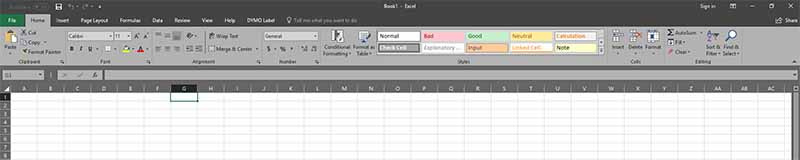
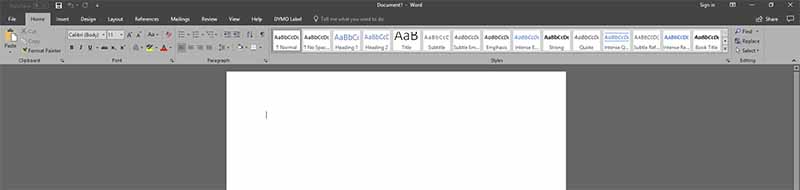
Office 2016 also looks a little different from Office 2013 or Office 2010. In Office 2013/2010, the default background for your document and ribbon was white, but you could also choose light gray or dark gray. In Office 2016, the default background for the ribbon tabs is the color of the application’s icon. For example, Word is dark blue, Excel is dark green, and PowerPoint is orange. But you can go back to white or dark gray if you like. The dark gray theme is designed to be helpful to people with impaired vision.

Creating Outlook HTML Email Templates

Posted on

Step 1: Creating your HTML template

You should create your HTML email template as you would any normal HTML page. The rules are relatively straight-forward for this. Use tables and nested tables like you would for a 1998 era web-page. No background images, limited CSS. The cool, fancy stuff you can do with CSS3 is out.

Step 2: Getting your template into Outlook

Once you’ve built your email template as an HTML document with all of its images and styles you’ll need to open that HTML template in Internet Explorer. Once you have it displaying in IE you’ll need to send it to Outlook. You can do this by opening IE’s File menu and selecting Send. Hovering the Send option will give you the option of sending it as an email. Clicking this will open your new template in an Outlook Email window.

Step 3: Saving your template

First you must File > Save. Wait, you’re not done. Once you’ve saved the email you can then save the email template. Now you must File > Save As. Select the save as Outlook Template option in the selection list that appears in the dialogue that opens. You have now saved your template and can now use it.

To use an email message template, do the following:

  1. On the Home tab, in the New group, click New Items, point to More Items, and then Choose Form.
  2. In the Choose Form dialog box, in Look In, click User Templates in File System.
  3. The default templates folder is opened. The folder location (in Windows Vista and later operating systems) is c:\users\username\appdata\roaming\microsoft\templates. If your template is saved in a different folder, click Browse, and then select the template.
  4. Select the template, and then click Open.
  5. Make any additions or revisions to the recipients in the To, Cc, or Bcc boxes. You can also change the text in the Subject box and add contents to the message body.
  6. Note: Changes made aren’t saved to the template. If you use the Save command, this creates a draft of your message, but won’t update the template. To update the template, follow the steps for saving a new template in Create an email message template.

  7. Click Send.