Windows 10 Paging file error on boot up

Posted on

Error:

Windows created a temporary paging file on your computer because of a problem that
occured with your paging file configuration when you started your computer. The total paging
file size for all disk drives may be somewhat larger than the size you specified

If you get errors that Windows cannot create a paging file, you can do the following:

  1. Try repairing the drive by checking fro errors and defraging
  2. Delete the [pagefile.sys] and reboot
  3. Modify the registry to verify the paging file has a location

Deleting Paging File

  1. Log in under a local Administrator account. (Do this after each restart in these instructions as well.)
  2. If it’s not already open, open the virtual memory settings by rich-clicking on Computer, → PropertiesAdvanced System Settings → click the Advanced tab → Under Performance, click Settings, go to Advanced tab, finally under Virtual Memory section click the Change button.
  3. Uncheck the Autmatically manage paging file size for all drives checkbox.
  4. Set a “Custom size” for the paging file on the C drive: 0MB initial, 0MB maximum.
  5. Click OK, close all dialog boxes, and restart your computer.
  6. After logging in again, delete the file C:\pagefile.sys
    1. To do this, you may need to change your folder settings so you can see it first. Open a window of your C: drive and click Organize at the top, then Folder and Search Options
    2. Click the View tab, and make sure Show hidden files, folders and drives is turned on, and that Hide protected system files is not checked.
    3. Click OK and go back to your C: drive, find pagefile.sys and delete it.
  7. Now go back to the virtual memory settings (see step 2 above) and set the paging file for the C: drive to System managed size, and then make sure the Automatically manage paging file size for all drives checkbox is checked.
  8. Click OK, close all dialog boxes, and restart your computer.

Registry Change

HKLM\SYSTEM\ControlSet001\Control\Session Manager\Memory Management/PagingFiles
Resolving HDMI Sound Issues

Posted on

Resolving HDMI Sound Issues

  • Right-click the Volume icon by the time in the lower-right corner.
  • Click Playback Devices.
    The Sound window opens.
  • On the Playback tab, click the following audio output device that is listed:
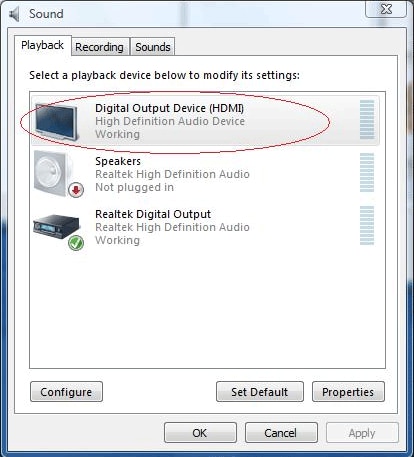
    • Digital Output Device (HDMI)
      Figure : Digital Output Device (HDMI) selection

      Image of Digital Output Device (HDMI) selection

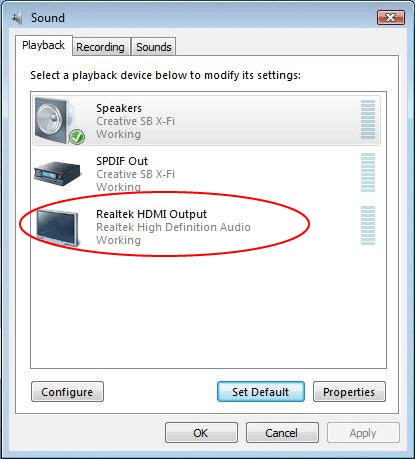
    • Realtek HDMI Output
      Figure : Realtek HDMI Output selection

      Realtek HDMI Output selection

    • NVIDIA HDMI Output
      Figure : NVIDIA HDMI Output selection

      NVIDIA HDMI Output selection

    • ATI HDMI Output
      Figure : ATI HDMI Output selection

      ATI HDMI Output selection

  • Click Set Default.
  • Click Apply.
    • If you used Digital Output Device (HDMI), click OK to close the window. This completes the steps to activate HDMI sound.
    • If you used Realtek HDMI Output, continue with Step 6.
  • Double-click Realtek HDMI Output.
    The Realtek Digital Output Properties window opens.
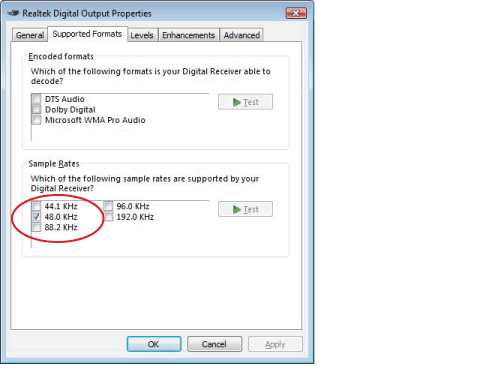
  • Click the Supported Formats tab.
  • Place a check in the 48.0 KHz check box, and make sure that there are no checks in the Dolby Digital check box and all other check boxes.
    Figure : Supported Formats settings in the Realtek Digital Output Properties window

    Supported Formats settings in the Realtek Digital Output Properties window

      note:
    For most TVs to play back audio, the sample rate must be 48.0 KHz.


Nortel/Norstar Auto Attendant and Voice Mail Phone System Programming

Posted on

Nortel/Norstar Auto Attendant and Voice Mail Phone System Programming

Programming must be done from any M7310, T7316, or M7324 model phone set.

On phone Handset Press Feature 983

Id 1020000

Press AA

Press GRTG

Press GRTG

Create or Select Greeting:

1 – Message 1

2 – Message 2

3 – Message 3

4 – Message 4

etc…

Record messages using handset

Press OK

Play or record new message

Press OK

Additional Programming

Programming must be done from any M7310, T7316, or M7324 model phone set.

 To Log Into System Administration:

1. Enter Feature 983
2. The display will show “LOG”, enter your login password

a. If your company extensions are 2 digits long enter “120000”
b. If your company extensions are 3 digits long enter “1020000”
c. If your company extensions are 4 digits long enter “10020000”

  1. Press the softkey under “OK”

    To Create a New Mailbox:

  2. Log into system administration
  3. Select the softkey under “MBOX”
  4. Select the softkey under “ADD”
  5. Enter the mailbox number (extension. you want to add
  6. Mailbox type: Subscriber and then select “OK”
  7. Extension: Usually the same as the mailbox number
  8. Service Class: Enter 1
  9. Name: Enter the name using the dial pad. Enter last name first, press “# #” to enter a comma, and then enter the first name. When spelling the name, press # to move to the next character
  10. Directory: Y (Yes.
  11. Message Waiting: Y (Yes.
  12. Out dial: Pool, enter 1 and then OK
  13. Accept: 1, select OK

    To Delete a Mailbox:

  14. Log into the system administration
  15. Select the softkey under “MBOX”
  16. Select the softkey under “DEL”
  17. Enter the mailbox number (extension. you want to delete
  18. Select the softkey under “Delete”

    To Reset a Mailbox Password:

  19. Log into system administration
  20. Select the softkey under “MBOX”
  21. Select the softkey under “Chng”
  22. Enter the mailbox number you want to reset the password for
  23. The display shows “Reset Password”
  24. Select the softkey under “RESET”
  25. Press the release key
    *The new password will be “0000”, the system will ask the user to change this the first time they log into their mailbox using this password.

    To Change the Name on a Mailbox:

  26. Log into system administration
  27. Select the softkey under “MBOX”
  28. Select the softkey under “Chng”
  29. Enter the mailbox number (extension. you want to change the name on
  30. The display shows “Reset Password”
  31. Select the softkey under “Next”, keep hitting “Next” until the display shows the name
  32. Select the softkey under “Chng” to enter a new name
  33. Enter the name using the dial pad. Enter last name first, press “# #” to enter a comma and then enter the first name. When spelling the name, press “#” to move to the next character
  34. Select the softkey under “Next” to save the change
  35. Hit the release button

    To Change the “Recorded” Name for the Company Directory:

  36. Have the Voicemail User log into their mailbox, after putting in their password, press the button under “Admin” (or press the number 8 key., and then press the number 1 key.
  37. You will hear the old recorded name and then the system will “beep”, prompting you to record a new name (name only here, not greeting..
  38. Press “Ok” in the window when you are done recording and then “Ok” again to accept the recording