From wintips.org This tutorial contains instructions on how to mirror boot hard drive on Windows 10, on a legacy or an UEFI based systems. The bellow procedure will help you to boot from the secondary mirrored drive if your primary boot drive fails to boot or becomes damaged.
I always suggests my customers to frequently take a backup of their important files and data, to an external storage device, to avoid data loss after a hardware failure and to keep this storage device (with the backup) offline, in order to avoid data construction after a ransomware (virus) attack.
In a company environment, except the above precautions, IT Administrators must also take precautions to avoid any complications in company’s work, after a hard drive failure. Commonly, for this purpose companies prefer to use the hardware based RAID [Redundant Array of Inexpensive (or Independent) Disks] technology, that combines multiple physical disk drive components into one or more logical units for redundancy, performance improvement, or both, by using a physical RAID controller which is integrated on the motherboard or as an extra add-in card.
One of the most known RAID implementations, is the “RAID 1” level, which offers Hard Drive Mirroring. In RAID-1, the data are written identically to two (or more) drives at the same time. This means that if the one drive fails, all your data will be completely safe on the other drive. RAID-1, is commonly used, to mirror the boot disk on the system, in order to avoid work downtime and data loss.
In this post you ‘ll learn how to mirror the boot drive on Windows, with LOW cost (without using a physical RAID controller).* The article’s instructions applies to Windows 10, 8 or 7 OS.
* Suggestion: The Hardware Based RAID implementation, (by using a physical RAID controller), is the most reliable and safest choice to protect your data and to avoid boot problems from the secondary mirror boot drive, if the primary boot drive fails.
How to Create a Mirrored Boot Drive on Windows 10 OS.
Requirements: In order to create a mirror of the Boot Drive or of any other volume, you ‘ll need a secondary physical drive with at least the same size as the drive that you want to mirror. So, prefer to use two identical physical hard disks (same model).
Important Note: The way to mirror the Boot Volume(s) on Windows 10, is different for the MBR Partition style and for the GPT Partition Style. If you have a Legacy based system, then the Partition Style is MBR and if you own a UEFI based system then the partition type is GPT. So before you continue below, proceed and find out if you own a Legacy or a UEFI based system.
To find out if you have a Legacy (MBR) or a UEFI (GPT) based system:
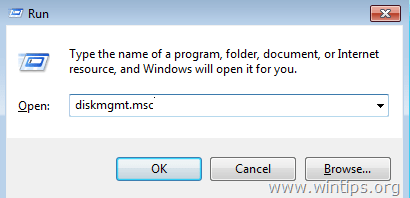
1. Press the “Windows”  + “R” keys to load the Run dialog box.
2. Type diskmgmt.msc and press Enter.
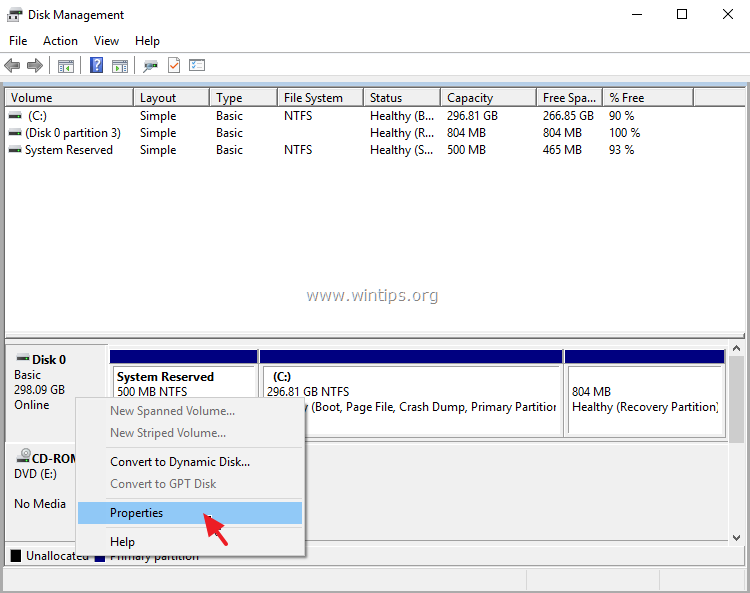
3. Right click on Disk 0 and select Properties.
3. At Volumes tab, note the Partition Style of the volume.
- If the Partition Style says “Master Partition Record (MBR)”, then you own a Legacy based system. At this case, follow the instructions at Case A below to create a mirror of the boot drive.
- If the Partition Style says “GUID Partition Table (GPT)”, then you own a UEFI based system. At this case, follow the instructions at Case B below to create a mirror of the boot drive.

2. Before you continue to mirror the boot drive, proceed and disable the Hibernation on your system, because hibernation, may fail after the failure of a mirrored boot volume.
To disable hibernation on your system:
1. Open Command Prompt as Administrator.
2. In command prompt type the following command and press Enter:
- powercfg.exe /h off
Case A. How to Create a Mirrored Boot Volume on Legacy Based Systems (MBR)
Case B. How to Create a Mirrored Boot Volume on UEFI Based Systems (GPT)
Case A. How to Mirror Windows 10 Boot Drive on Legacy Based Systems (MBR).
To mirror an MBR Boot drive with Windows 10 OS:
1. Press the “Windows” + “R” keys to load the Run dialog box.
2. Type diskmgmt.msc and press Enter.
3. Right click on the primary disk (the boot disk: Disk 0) and select Convert to Dynamic Disk.

4. Click OK, then click Convert & Yes to finish the conversion.
5. Then right click on the secondary disk (the empty disk: Disk 1) and select Convert to Dynamic Disk.

6. Now Right click at System Reserved volume and select Add Mirror.

7. Select the Disk 1 and click Add Mirror.
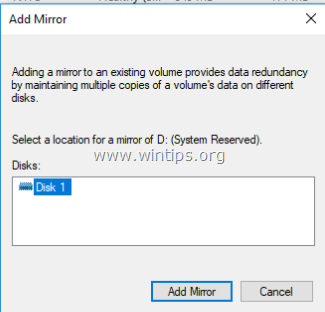
8. Wait until the “System Reserved” volume synchronization is complete.
9. Then right click at “C:” volume and select Add Mirror. *
* Note: If the “Add Mirror” option is greyed out, that means that the unallocated space on the secondary drive is smaller than the size of “C:” volume on the primary drive. To bypass this problem, shrink the size of the volume C:, to a size that is equal or smaller of the unallocated size on the secondary drive. (Right click on the C: drive and choose Shrink Volume).
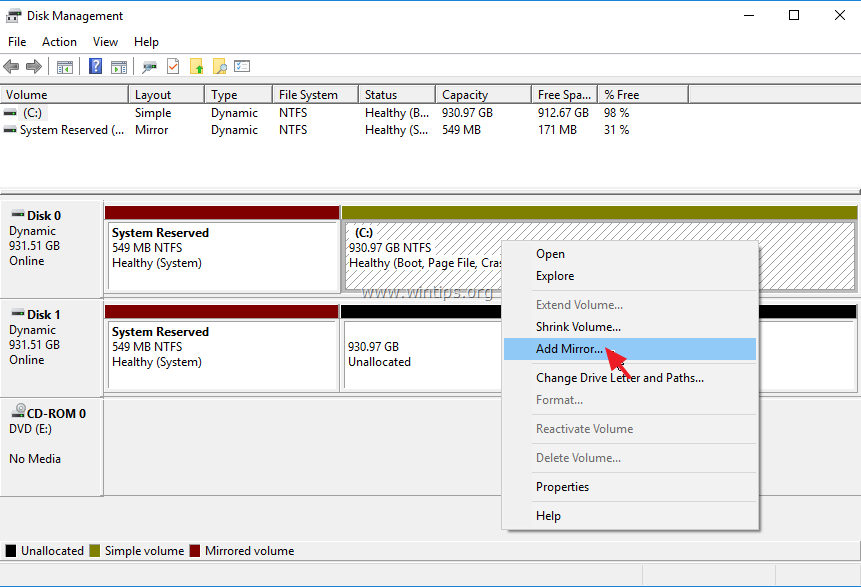
10. Select the Disk 1 and click Add Mirror.
11. Wait again, until the synchronization of the C: drive is complete.
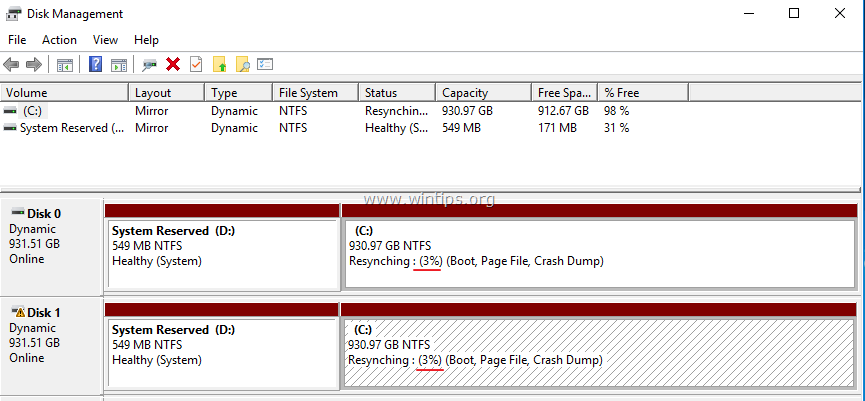
12. You ‘re done! From now on, you will always have an exact copy (mirror) of your main drive on the secondary drive. If the first hard disk fails, just disconnect it from your system and boot from the secondary drive. If the secondary boot drive fails to boot, then apply the steps in Method 2 in this tutorial.
Case B. How to Mirror Windows 10 Boot Drive on UEFI Based Systems (GPT).
To mirror a GPT Boot drive with Windows 10 OS, you have to:
1. Mirror the Recovery Partition.
2. Mirror the EFI System Partition.
3. Mirror the Operating System Partition.
Part 1: How to Mirror the Recovery Partition on Windows 10.
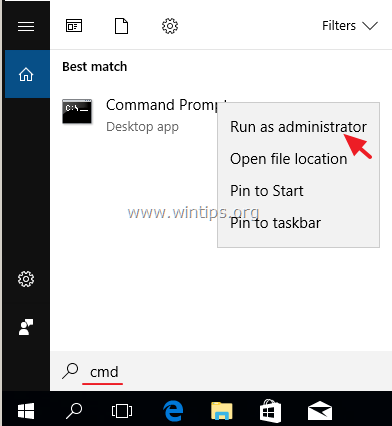
Step-1. Open command prompt as administrator. To do that:
1. In the Search box type: cmd or command prompt
2. Right click on the command prompt (result) and select Run as Administrator.
Step-2. In command prompt type: diskpart and press enter.
Step-3. View the details of the Recovery Partition on the Primary Disk, by typing the following commands in order:
1. select disk 0
2. select partition 1
3. detail partition
Step-4: Note the Type ID of the recovery partition and its Size.
e.g. As you can see at the screen below the partition’s size is “499” MB and the type ID is: “de94bba4-06d1-4d40-a16a-bfd50179d6ac”

Step-5. Convert the Secondary disk (DISK 1) to GPT and then create a Recovery Partition.
1. select disk 1
2. convert gpt
3. select partition 1
4. delete partition override
5. create partition primary size=499 *
* Note: Specify the same size you noted from the details at step-4 above.

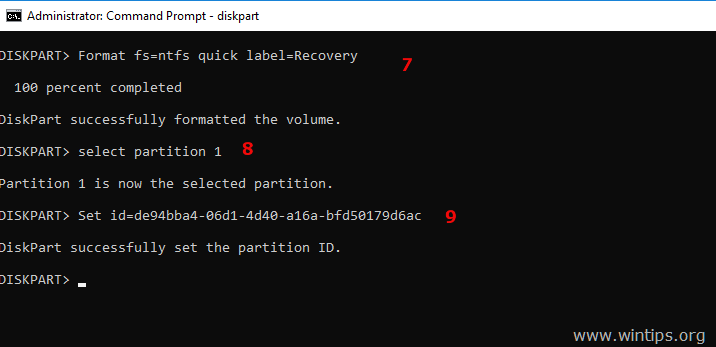
7. format fs=ntfs quick label=Recovery
8. select partition 1
9. set id=de94bba4-06d1-4d40-a16a-bfd50179d6ac *
* Note: Specify the same type ID you noted from the details at step-4 above.
Step-6. Assign drive letters to the recovery partitions on both disks.
1. select disk 0
2. select partition 1
3. assign letter=q
4. select disk 1
5. select partition 1
6. assign letter=r
7. exit

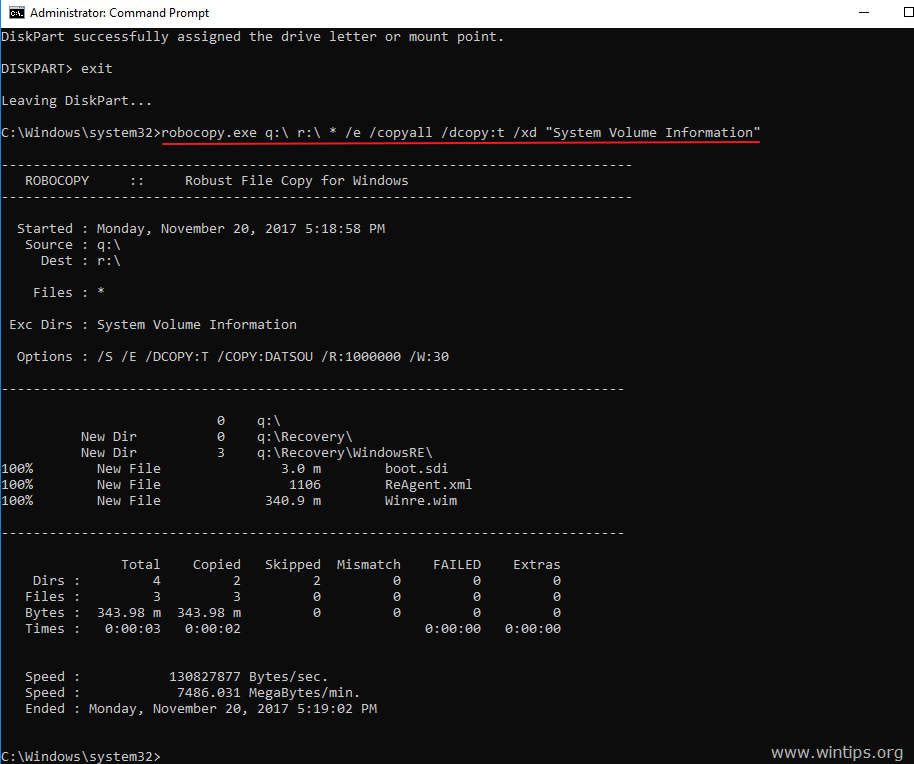
Step-7. Copy the contents of the primary recovery partition of Disk 0, to the primary recovery partition on the secondary disk (Disk 1), by typing the following command in command prompt: *
- robocopy.exe q:\ r:\ * /e /copyall /dcopy:t /xd “System Volume Information”
* Note: Type exit to close the DISKPART tool first.
Step-8. Continue to Part-2 below, to mirror the SYSTEM volume.
Part 2: How to Mirror the EFI System Partition on Windows 10
The next steps will help you to mirror the EFI System Partition, using the DISKPART tool and command prompt:
Step-1: In DISKPART, type the following commands in order:
1. select disk 0
2. list partition
Step-2: Note the size in megabytes of “System” & “Reserved” Partitions on the boot disk (DISK 0). *
* e.g. As you can see at the screenshot below, the size of the “System” (EFI ) Partition is “99” MB and the size of “Reserved” (MSR) partition is 16MB.

Step-3. Create the System and Reserved partition(s) and assign a drive letter to the EFI partition, on the secondary disk (DISK 1):
1. select disk 1
2. create partition efi size=99 *
3. format fs=fat32 quick
4. assign letter=t
5. create partition msr size=16 *
* Note: Specify the same size you noted at step-2 above for the EFI & MSR partitions.

Step 4. Assign a drive letter to the System partition on the primary disk (DISK 0) and exit DISKPART.
1. select disk 0
2. select partition 2
3. assign letter=s
4. exit

Step 5. Copy the contents of the primary EFI System partition of Disk 0, to the primary EFI System partition on the secondary – mirrored – disk (Disk 1), by typing the following command in command prompt: *
- robocopy.exe s:\ t:\ * /e /copyall /dcopy:t /xf BCD.* /xd “System Volume Information”
* Note: Type exit to close the DISKPART tool first.

Step 6. Close Command Prompt and continue to Part-3 below to mirror the OS volume.
Part 3. How to Mirror the Operating System Partition on Windows 10.
The final step, is to mirror the Operating System Volume (C:)
1. Press the “Windows” + “R” keys to load the Run dialog box.
2. Type diskmgmt.msc and press Enter.
3. Right click on the primary disk (the boot disk: Disk 0) and select Convert to Dynamic Disk.
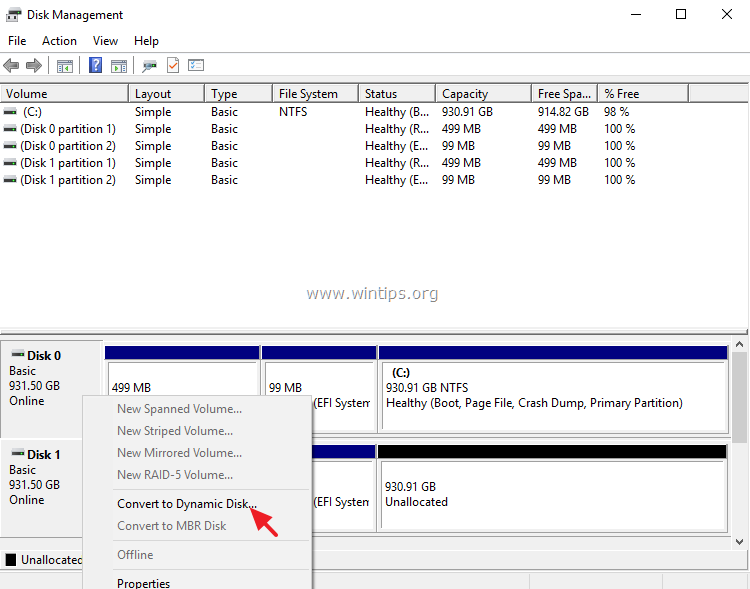
4. Click OK, then click Convert & Yes to finish the conversion.
5. Then right click on the secondary disk (the empty disk: Disk 1) and select Convert to Dynamic Disk.
7. Finally right click at “C:” volume and select Add Mirror. *
* Note: If the “Add Mirror” option is greyed out, that means that the unallocated space on the secondary drive is smaller than the size of “C:” volume on the primary drive. To bypass this problem, shrink the size of the volume C:, to a size that is equal or smaller of the unallocated size on the secondary drive. (Right click on the C: drive and choose Shrink Volume.).
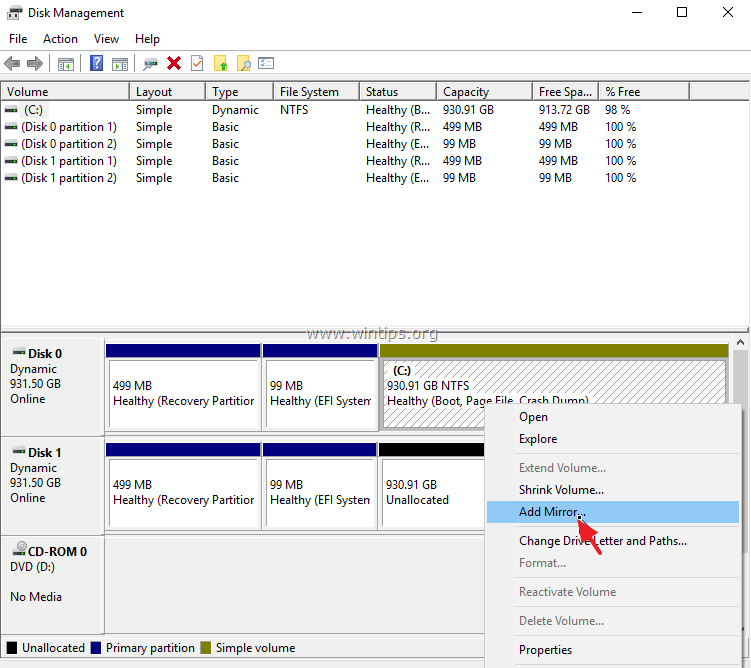
8. Select the Disk 1 and click Add Mirror.

9. Wait, until the synchronization of the C: drive is complete. From now on, you will always have an exact copy (mirror) of your data from your main drive to the secondary drive. If the primary boot drive fails, then you can disconnect it and boot from the secondary drive. *
* Note: If the primary drive fails and you cannot boot from the secondary boot drive, then you must break the mirror and to repair the BCD on the 2nd boot drive using the recovery environment. Detailed instructions to do that, can be found in this tutorial.
That’s it! Let me know if this guide has helped you by leaving your comment about your experience. Please like and share this guide to help others.