You are prompted to specify Internet Explorer when you click a link in Outlook 2010 or Outlook 2007

Posted on

Symptoms

In Microsoft Outlook 2010 or Office Outlook 2007, when you click a hyperlink to a webpage, you’re prompted to specify the application to open the page, as in the following screen shot.

You are prompted like this even though you specified Internet Explorer as your default browser.

Cause

This problem occurs if your computer has the following configuration:

  • Running Windows 10
  • Internet Explorer 11 set as the default browser
  • Running either Outlook 2010 or Outlook 2007

In this scenario, this behavior is by design. In Windows 7, the following registry key exists by default, and it sets the default browser. Specifically, this registry setting causes the default browser to open when you click a hyperlink in Outlook 2010 or Outlook 2007:

HKEY_CLASSES_ROOT\htmlfile\shell\opennew

However, in Windows 10, this registry key no longer exists by default. Therefore, you experience the issue that’s described in the “Symptoms” section.

Resolution

To fix this problem, follow these steps to add the following registry keys and data:

  1. Exit Outlook.
  2. Start Registry Editor. To do this, press the Windows key+R to open the Run window, type regedit in the Open box, and then press OK.
  3. In Registry Editor, locate and then click the following subkey:HKEY_CLASSES_ROOT\htmlfile\shell\opennew\command
  4. If the opennew and command registry keys don’t exist, follow these steps to add them:
    • Click the following registry subkey:
    • HKEY_CLASSES_ROOT\htmlfile\shell
    • On the Edit menu, point to New, and then click Key.
    • Type opennew, and then press Enter.
    • Click the opennew registry key.
    • On the Edit menu, point to New, and then click Key.
    • Type command, and then press Enter.
  5. Under command, locate and then double-click the following value:
  6. In the Value data box, enter the following text: rundll32.exe url.dll,FileProtocolHandler %1
  7. Click OK.
  8. Exit Registry Editor.

WARNING – Firefox Update NOT compatible with many web sites & camera systems

Posted on
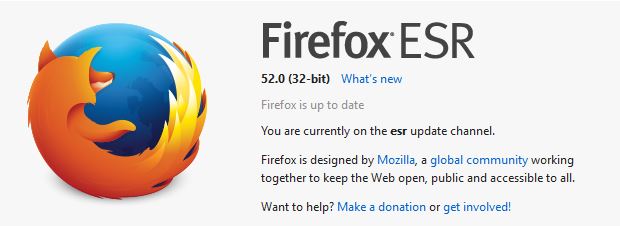
firefox ESR

Firefox has released an update to Ver 52 which has been causing many headaches. We have received many calls from customers stating web sites stop functioning or they have lost access to their cameras and/or they cannot install their Firefox plugins/addons.

We also were effected with similar issues. Only after many hours of trying to understand and repair this, we realized that the issues centered around Firefox’s latest update. Firefox is aware of this and has released an ESR (Extended Support Release) to rollback their changes for a time (yes eventually this fix will also not work). We have used this fix and it does not seem to effect bookmarks or other settings. Eventually, all addons and plugins will have to be upgraded and we are at the mercy of the respective manufacturers – hence when this ESR expires we either can no longer use firefox or we hope our manufacturers update their plugins and web sites – I an not confident about older camera systems being supported at this time.

If you experience ANY issues using firefox such as:

  • You can no longer access your camera systems
  • Web sites ask for plugins
  • PDF viewer stops working
  • Add-Ons in Firefox is empty

You need to do the following:

  1. Check your version of Firefox – Click on the top menu HELP – About Firefox. If you have Ver 52 Continue to the next steps
  2. Click here to download the FIREFOX 5.2 ESR I have this link going right to the English Version simply select the proper 32 or 64 bit – again you can tell which you have by the HELP button
  3. Goto your DOWNLOADS folder and RUN the fire fox update – usually named: FIREFOX SETUP 52.0esr.exe. This will usually be located in your DOWNLOADS folder.
  4. Continue with the STANDARD install of this update
  5. Once completed restart firefox

This should bring back your system to before the update – check your websites and camera systems.

If you experience any other issues, please contact us for help.


Preventing Good Emails from Going into your Spam Folder

Posted on

Do you find that Outlook is incorrectly sending legitimate emails to your junk mail folder? Here are a few tips to help your junk mail filter work properly.

These tips are based on the Safe Senders List. The Safe Senders list is basically a list of email addresses (or domains) that you say should NOT be treated as junk.

Change Settings to trust emails in your Contacts list and to trust people who you have sent emails to

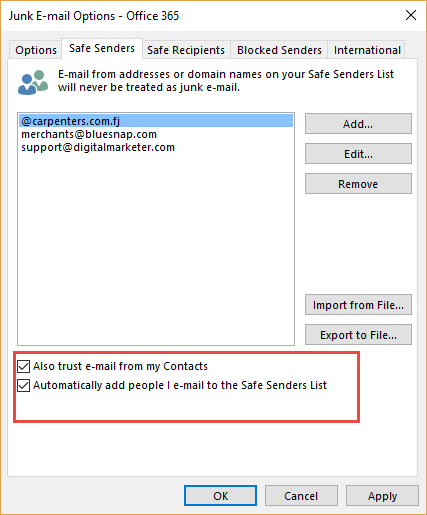
The first thing you need to do is to tell Outlook to trust email addresses that are in your Contact list. You can also tell Outlook to add people to your Safe Senders list anytime you send them an email (even if they are not in your contact list)

    1. Right click over any email in your Inbox.
    2. Click Junk and then Junk E-mail Options.
    3. Click on the Safe Senders tab.

signature

  1. Tick the checkbox to “trust emails from my Contacts”.
  2. Tick the checkbox to “automatically add people I email to the Safe Senders List”.

Add people who end up in the Junk Mail folder to the Safe Senders List.

You will still find that some legitimate emails may end up in the Junk Emails folders. Here’s what you need to do to add them to the Safe Senders list.

    1. Go to your Junk Email folder.
    2. Right click over the email.
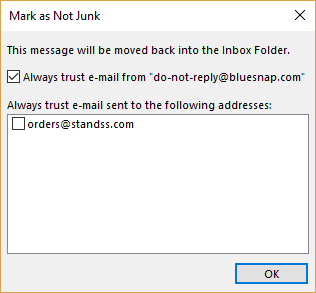
    3. Click Junk and then click Not Junk.

signature

  1. Make sure that the “Always trust….” checkbox is ticked.
  2. Click OK.

The senders email address will be added to the Safe Senders list and the email will be moved to your Inbox too.

Using The Jet Compact Utility To Compress A Database

Posted on

We offer:

  • Monthly Service Contracts to Manage your POS so you can manage your business.
  • Protect your POS data with Remote Backup Services – Only $20 a month!
  • Need Help? We havehourly remote access and phone support for your critical issues – keep your business working!

Call Us Today 718-921-6159

URGENT DATA LOSS CAN RESULT – FOLLOW THESE INSTRUCTIONS

  • BACKUP YOUR DATA BEFORE YOU BEGIN!
  • TURN OF ALDELO POS BEFORE YOUR BEGIN
  • IF POSSIBLE TURN OFF ALL COMPUTERS EXCEPT SERVER BEFORE YOUR BEGIN
  • DID WE MENTION TO BACKUP YOUR DATA BEFORE YOU BEGIN?
  • IF YOU ARE UNSURE OF ANYTHING FOR ANY REASON CALL 718-921-6159 – our low cost service rates wont damage your business as having this procedure fail.

After running your restaurant with Aldelo® For Restaurants for a period of time, the database can become very large. This in turn can slow down the software. Reducing the size of the database by running the jet compact utility can help keep the software running at its peak of performance. The Aldelo® Jet Compact Utility creates a copy of the database at a reduced size. This new database is saved in the same folder as your active database.

Note: THIS PROCEDURE SHOULD BE DONE ON THE POS TERMINAL DESIGNATED AS THE SERVER. Be sure to create a backup of your live database before attempting to use the Aldelo® Database Cleaner utility. In Aldelo® For Restaurants, navigate to the Back Office and click on “Backup Database” under Common Tasks.

Open the Start Menu and Click Run (or press the Windows Key + R on the keyboard)

Browse to the following path: C:\Program Files\Aldelo\Aldelo For Restaurants\Aldelo For Restaurants POS\

Note: on 64 bit systems the path is: C:\Program Files (x86)\Aldelo\Aldelo For Restaurants\Aldelo For Restaurants POS\

Open the Jet Compact Utility: JETCOMP.exe

In the Jet Compact Utility, specify the source database. In most instances, databases are stored in c:\RESDATA.

Next, select the destination for the new (compacted) database. Ensure the new database is given a new name. You do not want to overwrite the existing one!

Database Locale: Leave “None – Use Current language” selected

Under Additional Compact Options, leave “Destination is 4.x database format” selected.

Click the compact button. Depending on the size of the database, this process can take some time.

Once the compact is completed, open C:\Resdata

  • Take note of the current database name, which we refer to as [DatabaseName] in the next steps.
  • Rename the original database to Old-[DatabaseName]
  • Rename the compacted database to [DatabaseName]

Open Aldelo. Aldelo should now open up using the new compacted database.