
Windows 10 upgrade caused Mapi error in Office 2010

Posted on

Windows 10 upgrade breaks Mapi in Office 2010

Microsoft’s latest updates (version 1703 to 1709) causes a failure when trying to save and send a PDF in Microsoft Word and Quickbooks.

After the upgrade, mailing directly from Word or Quickbooks causes the following error:
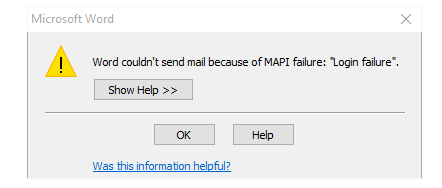
Office repair and fixmapi both do not work as well as a reinstall of office.

Solution:

1. Rename Msmapi32.dll located in C:\Program Files (x86)\Common Files\System\MSMAPI\1033 or C:\Program Files\Common Files\System\MSMAPI\1033

2. Right-click the MSMapi32.dll file, and then click Rename.

3. Type Msmapi32.old, and then press ENTER to rename the file.

4. Restart Word 2010.
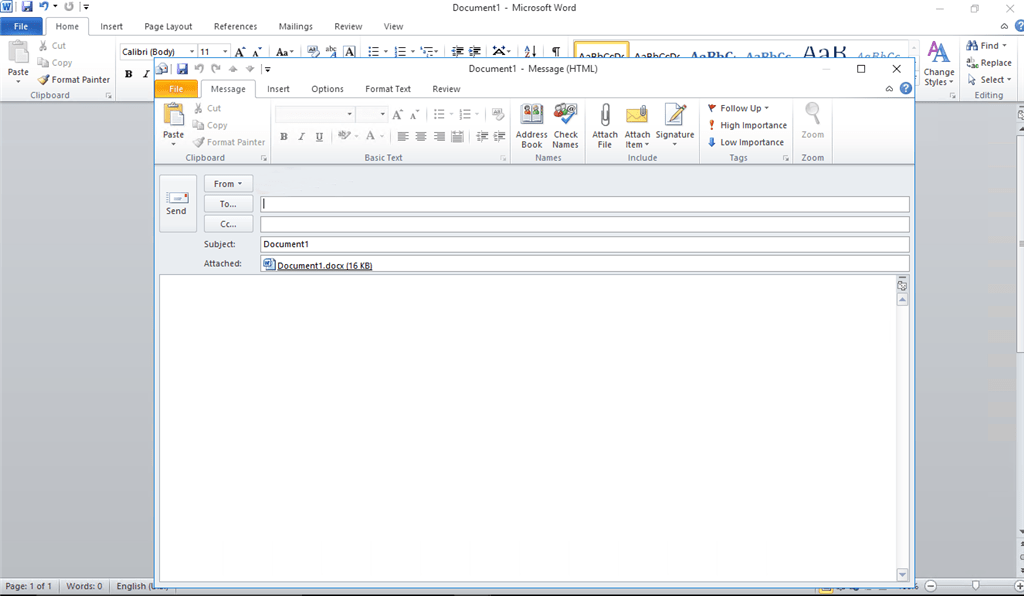
The next time you try to do save and send as PDF, office will reinstall the MSMapi32.dll, and sending will once again function.

Still having trouble? Call us for assistance!

Bulldog Tech Staff
How to resend an Outlook email – Outlooks Hidden Feature

Posted on

Do you need to send an email again? Maybe you forgot to attach a file the first time, or maybe you sent it to the wrong person, maybe you need to add a few more recipients…

One way to do this is to go to find the sent email (in your Sent Items folder) and then do a Forward or Reply on it, make any changes you want and then click Send. The problem with that is it adds FW or RE in the subject line… and adds the original send dates, recipients etc in the body of the email. Any changes that you make to the email may also be highlighted in a different color making it look like you resent the email.

If email security and confidentiality is important to your organization, you may also want to look at SendGuard for Outlook.

There is an another way built into Outlook.

Go to your Sent Items folder.

Open the email in its own window (by double-clicking on it).

The Message tab of the Ribbon should already be selected (click on it if you need to).

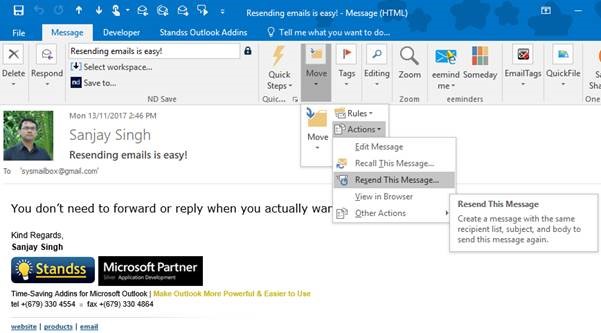
One the Move group, click Actions and then click Resend This Message.
SendGuard for Outlook
A new unsent email will be opened will all the details of this email copied to it. Make any changes that you need to and then click Send.


Resetting Microsoft Edge Browser

Posted on

Resetting Microsoft Edge Browser

Sometimes Microsoft’s Edge browser simple does not work properly. Web sites fail to load, web apps do not work properly and in general Edge3 causes more trouble than its worth. That’s when Firefox & Google Chrome can be saviors.

If you are experiencing any or other issues with Edge, than you can try this fix.

WARNING – resetting a browser may result in data loss, including the loss of favorites, settings, browser history, installed extensions, or other things maintained in the browser

To Reset Microsoft Edge:

  1. Turn “off” Device Sync Settings (Settings > Accounts > Sync your Settings > Sync Settings).
  2. Open File Explorer
  3. Find the following: C:\Users\%username%\AppData\Local\Packages
  4. Select and delete the following folder:
    Microsoft.MicrosoftEdge_8wekyb3d8bbwe(Select “Yes” on any confirmation dialog that follows.)
  5. In %localappdata%\Microsoft\Windows\SettingSync\metastore, delete
    meta.edb, if it exists.
  6. In %localappdata%\Microsoft\Windows\SettingSync\remotemetastore\v1, delete
    meta.edb, if it exists.
  7. Restart your PC (Start > Power > Restart).
  8. Turn “on” Device Sync Settings (Settings > Accounts > Sync your Settings > Sync Settings).
  9. Search for “PowerShell” using Cortana.
  10. Right-click the “Windows PowerShell” result, then select
  11. Run as administrator.
  12. Copy the following command, then Paste it in the PowerShell window and press Enter to run it:

Get-AppXPackage -AllUsers -Name Microsoft.MicrosoftEdge | Foreach {Add-AppxPackage -DisableDevelopmentMode -Register “$($_.InstallLocation)\AppXManifest.xml” -Verbose}

13. Then the command completes, Restart your PC (Start > Power > Restart).

Create web page shortcut for Edge

Posted on

To create a desktop shortcut in Microsoft Edge to open a website or a web page direct in Edge browser, you will have to follow the usual way to create a desktop shortcut and change its icon.

If you have set Edge as you default browser:

  • Right-click on the desktop
  • New
  • Shortcut
  • In the Type the location of the item field, type the URL of the web page
  • Click on Next, give the shortcut and name and complete the process. You may want to change the icon of the newly created shortcut.
  • Now when you click on it, the web page will open in Edge.

Turn off Low Toner Notifications in Windows 10

Posted on

How to turn off “Low Toner Notifications” in windows 10

Go to Devices and Printers
Click on Print Server Properties (in the “toolbar” area above the list of devices).
Click on the Advanced Tab.
For a local printer: Uncheck “Show Informational notifications for local printers”.
For a network printer: Uncheck “Show Informational notifications for network printers”.
Click OK.