Using The Jet Compact Utility To Compress A Database

Posted on

We offer:

  • Monthly Service Contracts to Manage your POS so you can manage your business.
  • Protect your POS data with Remote Backup Services – Only $20 a month!
  • Need Help? We havehourly remote access and phone support for your critical issues – keep your business working!

Call Us Today 718-921-6159

URGENT DATA LOSS CAN RESULT – FOLLOW THESE INSTRUCTIONS

  • BACKUP YOUR DATA BEFORE YOU BEGIN!
  • TURN OF ALDELO POS BEFORE YOUR BEGIN
  • IF POSSIBLE TURN OFF ALL COMPUTERS EXCEPT SERVER BEFORE YOUR BEGIN
  • DID WE MENTION TO BACKUP YOUR DATA BEFORE YOU BEGIN?
  • IF YOU ARE UNSURE OF ANYTHING FOR ANY REASON CALL 718-921-6159 – our low cost service rates wont damage your business as having this procedure fail.

After running your restaurant with Aldelo® For Restaurants for a period of time, the database can become very large. This in turn can slow down the software. Reducing the size of the database by running the jet compact utility can help keep the software running at its peak of performance. The Aldelo® Jet Compact Utility creates a copy of the database at a reduced size. This new database is saved in the same folder as your active database.

Note: THIS PROCEDURE SHOULD BE DONE ON THE POS TERMINAL DESIGNATED AS THE SERVER. Be sure to create a backup of your live database before attempting to use the Aldelo® Database Cleaner utility. In Aldelo® For Restaurants, navigate to the Back Office and click on “Backup Database” under Common Tasks.

Open the Start Menu and Click Run (or press the Windows Key + R on the keyboard)

Browse to the following path: C:\Program Files\Aldelo\Aldelo For Restaurants\Aldelo For Restaurants POS\

Note: on 64 bit systems the path is: C:\Program Files (x86)\Aldelo\Aldelo For Restaurants\Aldelo For Restaurants POS\

Open the Jet Compact Utility: JETCOMP.exe

In the Jet Compact Utility, specify the source database. In most instances, databases are stored in c:\RESDATA.

Next, select the destination for the new (compacted) database. Ensure the new database is given a new name. You do not want to overwrite the existing one!

Database Locale: Leave “None – Use Current language” selected

Under Additional Compact Options, leave “Destination is 4.x database format” selected.

Click the compact button. Depending on the size of the database, this process can take some time.

Once the compact is completed, open C:\Resdata

  • Take note of the current database name, which we refer to as [DatabaseName] in the next steps.
  • Rename the original database to Old-[DatabaseName]
  • Rename the compacted database to [DatabaseName]

Open Aldelo. Aldelo should now open up using the new compacted database.

Using Aldelo Database Cleaner To Archive Old Sales (Reduce Database Size)

Posted on

We Offer:

  • Monthly Service Contracts to Manage your POS so you can manage your business.
  • Protect your POS data with Remote Backup Services – Only $20 a month!
  • Need Help? We Havehourly remote access and phone support for your critical issues – keep your business working!

Call Us Today 718-921-6159

The Aldelo® Database Cleaner reduces the size of the active database in Aldelo® For Restaurants and archives the old sales information for tax purposes. Sales and void information are removed from the database while leaving other data, such as customer information, inventory information, employee information, etc., intact. It is very simple to use.

Warning! Do not use the Aldelo® Database Cleaner utility if there are any outstanding gift certificates or in house charges remaining that were issued prior to your selected date. If you do, these gift certificates and in house charges will be removed from the database along with your sales and void information. Once this information has been removed, it cannot be recovered. Always backup your database before using the Aldelo® Database Cleaner utility. Aldelo Systems Inc. shall not be responsible for any damages whatsoever, monetary or otherwise, resulting from the use of this software.

After running your restaurant with Aldelo® For Restaurants for a period of time, the database can become very large. This in turn can slow down the software. Reducing the size of the database by removing and archiving old sales information can help keep the software running at its peak of performance. The Aldelo® Database Cleaner utility allows the user to select a date prior to which all sales information will be removed from the active database and placed in an archive file. This archive file has a .archive file extension and is saved in the same folder as your active database.

Running the Utility

Note: Be sure to create a backup of your live database before attempting to use the Aldelo® Database Cleaner utility. In Aldelo® For Restaurants, navigate to the Back Office and click on “Backup Database” under Common Tasks.
First, open Aldelo® For Restaurants and navigate to the Back Office. In the System Information group box, make note of the path to the active database file listed under Data Source. You will need this information shortly.
Next, before you can run the Aldelo® Database Cleaner, you must shut down Aldelo® For Restaurants on all workstations, including the server computer. Then, from your desktop, navigate to Start > All Programs > Aldelo For Restaurants > Tools and click on “Database Cleaner” to display the main screen of the utility.


Click on the “Browse” button to display the Database File Selection window. In this window, navigate to the location of your existing live database file. The default path is C:\ Documents and Settings \ All Users \ Application Data \ Aldelo \ Aldelo For Restaurants \ Databases \ Live. If your file is not found here, navigate to the file along the path that was listed in the Back Office of Aldelo® For Restaurants under Data Source. Select your file and click “Open”.


The main screen re-appears with the path to your database displayed in the field at the top. In the lower field, enter the date before which you wish to delete the sales information from your database. The date must be in numerical format with a hyphen or slash separator, such as “01-01-2008” or “1/1/08.” After entering the date, press the “Enter” button on your keyboard. If the date was entered incorrectly, the text you entered in the date field is deleted automatically. Re-enter the date in the correct format. If the date was entered in the correct format, the “Start Cleaning” button is revealed and enabled. Click the “Start Cleaning” button to complete the process.


The Operation Complete message displays when the database cleaning is finished. Click the “OK” button to have the utility attempt to compact the database.


A message confirms that the compact procedure completed successfully (if the compaction fails, be sure to manually compact your database in Aldelo® For Restaurants). Click the “OK” button.


Your database has been successfully cleaned, archived, and compacted!

Create & Manage User Accounts Using Utility Netplwiz

Posted on

This article explains that how to manage User Accounts using utility “Netplwiz”. Netplwiz facilitates Administrator to add, remove users and groups and gives wonderful alternate to local users and groups MMC tool. Here people will get to know that how it manages Windows 8 / Windows 8.1 User Accounts and what are the functionalities and features of Advance User Accounts Control Panel(Netplwiz).

Functionalities of Advance User Accounts Control Panel(Netplwiz)

1. Create/Add User Account

There are many ways in Windows 8 / Windows 8.1 operating system to create user account among them Advance User Accounts Control Panel(Netplwiz) utility is also there . To create an account the user to be an Administrator or part of Administrator group.

First Step:

Open Advance User Accounts Control Panel using key Windows + R from the keyboard or click on Start –> Run program and type “Netplwiz” and click “OK”.

Second Step:

After opening the User Accounts wizard, click on the “Add” button to create a new user account. As soon as user click on Add button gets “Add a User” Wizard. In the “Add a User” Wizard as an Administrator, fill all columns and click on “Next”.

For example: Give the User name: SomyaSystem, Password, Reenter password, and Password hint: Somya Password and click on “Next”.

Third Step:

After clicking on “Next” button, one more wizard opens that will be the confirmation wizard from Administrator. This wizard also facilitates the Administrator to decide that the User Account is created for Child \ Kids or not, if the account is created for Child \Kids, Windows 8 / Windows 8.1 offers an option to turn on Family Safety for that account, as shown below.

Fourth Step:

Click “Finish” to create a User Account.

2. Remove User Account

Using “Netplwiz”, user cannot only create a User Account, they can remove the account too, only user should have Administrator privileges to do that.

First Step:

Follow same steps to open User Accounts Control Panel using key Windows + R from the keyboard or click on Start –> Run program and type “Netplwiz”.

Second Step:

After opening User Accounts wizard, select the account user wants to remove from Windows 8 and click on Remove button. For example; let’s remove the above created account SomyaSystem. To remove this account, first select the “SomyaSystem” account, and then click on Remove button, it will show the message given below in the picture to remove the selected account. Read the message and choose “Yes” or “No”. Click on “Yes” option to remove the user from Windows 8 workstation.


3. Properties Option

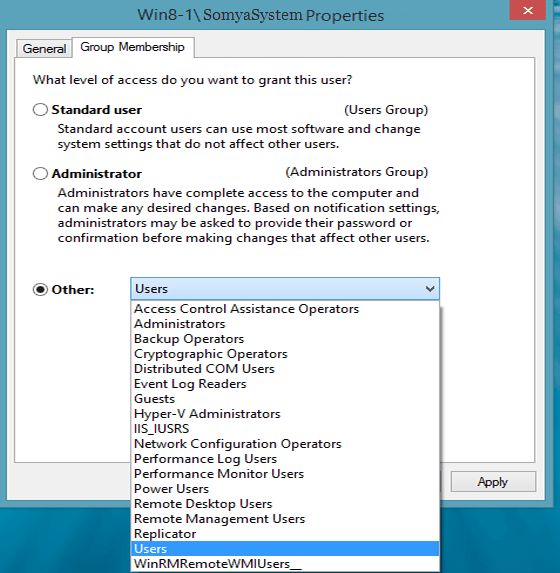
Properties option facilitates Administrator to change the User accounts General Information and manage Local Group using Group Member option. Using Group Member option Administrators can change the User Account type – Standard User, Administrator, or Other.

Follow steps given below to manage the User Group Membership, only user should have Administrative rights to do that.

First Step:

Open Advance User Accounts Control Panel. From the User Accounts wizard, choose a User account and click on Properties button. For example; choose the above created account “SomyaSystem” and click on Properties option.


Second Step:

In Properties option – General tab, Administrator can change the User Name, Full Name and Description of a specific User Account.

In Properties option – Group Membership tab, Administrator gets three options to change the User account – Standard, Administrator or Other as shown in the picture below.

Third Step:

After choosing preferred Group for which User account will be part of, click Apply and OK to complete the process.

4. Reset Password

User who has Administrative rights or the part of Administrator group having rights to reset the password of the Local User accounts as explained in the below steps.

First Step:

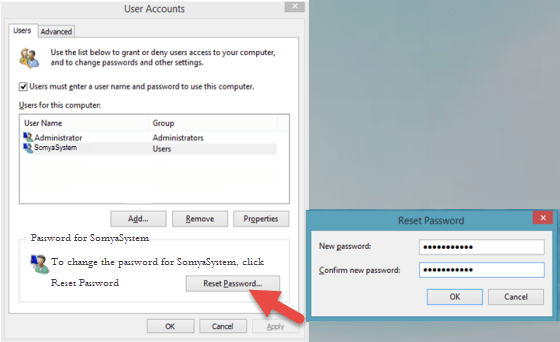
Open Advance User Accounts Control Panel, after opening User Accounts wizard, select the User Account and click on “Reset Password” to change the password.

Second Step:

On the Reset Password wizard, enter the password and click on “OK”.

Mount a Windows Share on a MAC OS X and Have it Reconnect at Login

Posted on

Something Mac users often need to do is be able to access files stored on Windows shares. Here’s a good way to mount those share, and keep them mounting at login.

Mounting the Windows Share

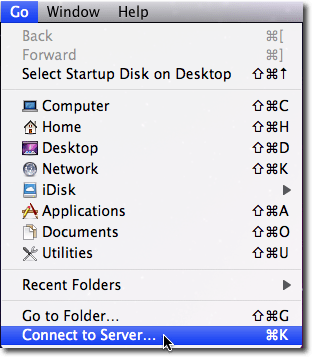
When you are in Finder you can click Go and Connect to Server or you can type Command + K to get to the same menu.

In Server Address you will need to put the location of you Windows share with this format smb://server/share where server is the name or IP address of your Windows machine and share is going to be the folder or drive you want to mount.

If your Windows share requires authentication it will ask you for that info here.

Now if you have Connected Servers showing on your desktop, it will show up on your desktop an in Finder.

Making the Share Mount at Login

To keep the share showing up when you have to log out seems pretty difficult. The internet is littered with ways to write scripts to allow you to do this. But OS X makes it pretty simple if you are just needing to add the share to your machine.

You will need to be in System Preferences for this, which you can get to by clicking on the Apple Menu and then going to System Preferences.

Then you will go to Accounts.

Once in Accounts, you will need go to the Login Items tab. Then you will just drag the share from your desktop or Finder window into the Login Items list.

If your share requires authentication, it may be possible to add the username and password into your keychain with the check box in the authentication window. Some shares will not work with the keychain though.

This is pretty nice if you are working a lot between OS X and Windows, and need to move files between the two.

How to Silence The Buttons (keypad buttons) on S300 Pin Pads

Posted on

We Offer:

Monthly Service Contracts to Manage your POS so you can manage your business.
Protect your POS data with Remote Backup Services – Only $20 a month!
Need Help? We Havehourly remote access and phone support for your critical issues – keep your business working!

Call Us Today 718-921-6159

Call Us Today 718-921-6159

A) Func key + 1: Enter password

B) Press #3

c) Press #1

D) Press #1

E) Press #1