
Resolving Aldelo DRM Errors

Posted on

We Offer:

  • Monthly Service Contracts to Manage your POS so you can manage your business.
  • Protect your POS data with Remote Backup Services – Only $20 a month!
  • Need Help? We Havehourly remote access and phone support for your critical issues – keep your business working!

Call Us Today 718-921-6159


The Aldelo DRM Error issue might be caused by a large number of reasons, but the number one cause for an Aldelo error such as “process drm payload failed” or “restart drm service” is all connected to ADRM.EndPoint.Service.exe

ADRM.EndPoint.Service.exe runs itself as a service named ‘Aldelo DRM Services’ (Aldelo DRM Services).

Here are the list of files installed by Aldelo EPS:

Aldelo.AIS.Config.exe – Aldelo.IntegrationServices.Config (Aldelo.IntegrationServices Configuration Utility)
Aldelo.AIS.Service.exe – Aldelo.IntegrationServices
ADRM.EndPoint.Service.exe – ADRM.EndPoint.Service
AKDS.Service.LC.exe – Aldelo KDS Service
ADRM.Client.exe – ADRM.Client (Aldelo DRM Client)
AKDS.Client.LC.exe – AKDS.Client (Aldelo KDS Client)
APFX.Config.exe – APFX.Config
APFX.Server.exe – APFX.Server

Resolution:
To solve the Aldelo DRM Error issue effectively and efficiently, contact Shoreline Technical Services right now at: 714-581-8000

DEPLOY ALDELO EPS
Start the “Aldelo Integration Services” Client Application
1. Click “End Points” Tab and select “Renew Keys” for the DRM entry

2. Click “Home” Tab and Select “Yes” to Renew the AIS Encryption Key

3. Once “Home” Tab is visible, click “Elevate Security” button
4. Once AIS Client application auto restarts, click “Install Service”
5. If the AIS Win Service was previously installed, then click the “Run Service” button instead
Start the “Aldelo DRM” Client Application
1. Click the “Manage Services” button, you may be prompted to
elevate security, if so, answer “Yes”.
2. Once Aldelo DRM client restarts, click “Manage Services” button again to view the Windows Service management screen
3. Click the “Add Http Reservation” button to reserve the http namespace. This is important in order for the DRM service to
operate properly. (Follow the default prompts that appears)
4. Now click the “Install Service” or “Start Service” to enable the
Windows service into running state
5. Now you may exit the Aldelo DRM Client unless you are ready to
activate one or more serial numbers

DRM LICENSING ACTIONS
Activate License
1. Click “Activate License” button within Aldelo DRM Client

2. Enter the Valid and Registered Serial Number
3. Click Next (This May Take a Minute)
4. Confirm The Information and Next / Next
5. Click Finish To Perform Activation
Note: You May Have Multiple Activations of Different Serial Numbers for Different Products, But Same Serial Number Cannot Be
Activated Twice On The Same Compute.

Renew License
1. Select An Existing Activation From The List and Click The Renew License Button

De-Activate License
1. Select An Existing Activation From The List and Then Click The De-
Activate License Button
How To Activate Receipt Printing

Posted on

We Offer:

  • Monthly Service Contracts to Manage your POS so you can manage your business.
  • Protect your POS data with Remote Backup Services – Only $20 a month!
  • Need Help? We Havehourly remote access and phone support for your critical issues – keep your business working!

Call Us Today 718-921-6159


Take out –> Counter –> Delivery
A) Back Office

B) Store Settings
C) Print Tab

D) Customer Receipt Tab

E) Select “Auto Print Receipt When Finish”

Creating and Using Plain Text Signatures in Outlook

Posted on

Do you have a great looking signature for your HTML emails but find that it either looks terrible or has missing information on plain text emails? Here’s what you need to do.

Problem
When you create a nicely formatted HTML signature in Outlook, it creates its own plain text version of it (for those instances when you send out or reply to plain text emails). The problem is that this automatically created version often does not contain essential information from the HTML version.

Step-By-Step Solution
In this post, we show you how to create a plain text version of your signature in Outlook. It probably won’t look as great as the HTML version (you can’t don any formatting in plain text) but you can at least ensure that it still contains all the information you want to put in.

  1. (In Outlook) Click File and then Options.
  2. Click on the Mail tab on the list of tabs on the left hand side.
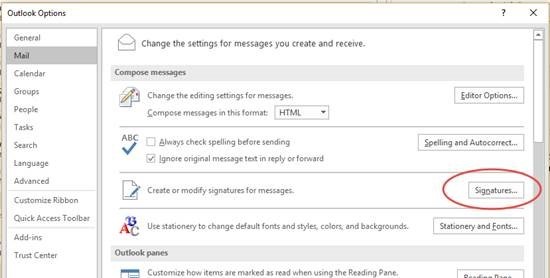
  3. Locate the Signatures button but do NOT click on it yet.
  4. Hold down the CTRL button and click the Signatures button. This will open the Windows folder that contains all the files that are used by Outlook to insert signatures in your emails.
  5. Find the txt version of the signature that you wish to modify. The txt version defines the plaint text version of that signature.
  6. Double-click the file to open it in Notepad. You will find that all formatting and images have been removed. You may also find that links etc are not where you expect them to be.
  7. Edit the file to back the information you want. At the minimum, I recommend you put your name, company name, email address and website. You may also want to put a slogan if one is appropriate for your company.


Testing Your New Signature:

  1. Create a new email and insert the signature.
  2. Click Format Text on the ribbon and click Plain Text.
  3. You will find that the email has been changed to Plain Text but now your signature contains all the information you want.

Contact, if you need additional help.
Sign up for Secure Microsoft Exchange Emails

Aldelo POS – Reprinting an Invoice

Posted on

We Offer:

  • Monthly Service Contracts to Manage your POS so you can manage your business.
  • Protect your POS data with Remote Backup Services – Only $20 a month!
  • Need Help? We Havehourly remote access and phone support for your critical issues – keep your business working!

Call Us Today 718-921-6159


To reprint an invoice in Aldelo POS:

  • In the main screen – Hit RECALL ORDERS
  • Under ACTIVITY, use recall date  – scroll down for the dates
  • You will than get a list of tickets for the day
  • When receipt is found –> Hit PRINT

If you have the invoice number, you can also search for the invoice number.

If you have questions, please call Vanguard Tech Support: 718-921-6159